<?xml version="1.0" encoding="utf-8"?><feed xmlns="http://www.w3.org/2005/Atom" ><generator uri="https://jekyllrb.com/" version="4.3.4">Jekyll</generator><link href="https://jite.eu/feed.xml" rel="self" type="application/atom+xml" /><link href="https://jite.eu/" rel="alternate" type="text/html" /><updated>2025-01-13T18:19:44+01:00</updated><id>https://jite.eu/feed.xml</id><title type="html">Jite.eu</title><subtitle>A blog about development with a personal (and sometimes humorous) touch.</subtitle><author><name>Johannes Tegnér</name></author><entry><title type="html">HA k3s - Deploying the network</title><link href="https://jite.eu/2025/1/13/k3s-provisioning-gitlab-deploy/" rel="alternate" type="text/html" title="HA k3s - Deploying the network" /><published>2025-01-13T18:00:00+01:00</published><updated>2025-01-13T18:00:00+01:00</updated><id>https://jite.eu/2025/1/13/k3s-provisioning-gitlab-deploy</id><content type="html" xml:base="https://jite.eu/2025/1/13/k3s-provisioning-gitlab-deploy/"><![CDATA[<div class="post-series">
    <span>This article is part 
                    
                3
            
                 in a series:</span>
    <span><i>HA K3s with terraform and ansible</i></span>

    <ul>


                <li> 
                    1
                 - 
                
                    <a href="/2024/12/29/k3s-provisioning/">HA k3s provisioning</a>
                
                </li>


                <li> 
                    2
                 - 
                
                    <a href="/2024/12/29/k3s-provisioning-network/">HA k3s - Networking in Hetzner</a>
                
                </li>


                <li> 
                    3
                 - 
                
                    HA k3s - Deploying the network
                
                </li>
            
        
    </ul>
</div>
<p><br />
<br /></p>

<p>As stated in the first post in this series, my plan is to deploy the cluster with the help of CI/CD pipelines in gitlab.<br />
Even if you don’t plan to deploy from a pipeline, some parts of this post could be useful still, as I will write about
states, and especially remote states.</p>

<p>I’ll try to use the <code class="language-plaintext highlighter-rouge">TF</code>/<code class="language-plaintext highlighter-rouge">tf</code> abbreviation for terraform and opentofu, as they both use that themselves. The projects
are still quite close to each other in functionality, but when it comes to the GitLab implementation, it’s OpenTofu that 
is used.</p>

<p class="info-box warning">If you use Terraform, the <code class="language-plaintext highlighter-rouge">encryption</code> part of this guide might not work as intended and you might want to leave any
auto encryption out. The <code class="language-plaintext highlighter-rouge">encryption</code> clause is new to OpenTofu.</p>

<h2 id="tf-in-gitlab">TF in GitLab</h2>

<p>GitLab have quite good support for Terraform and OpenTofu both as a state storage as well as a module registry, 
further, they supply ci/cd components to ease setting up deployment of the projects, which is really nice.</p>

<h3 id="tf-state">TF state</h3>

<p>When you deploy a tf project, a state is created, the state describes the currently deployed infrastructure.<br />
To allow sharing of states (excluding sending files), one of the easiest and best ways are to use a remote state storage.</p>

<p>There are a bunch of storage types, but in this case, I decided to use the one that GitLab provides (as that’s where I have my files and pipelines).</p>

<p>To tell gitlab to use their storage as your remote state storage, you aught to add a new object to the <code class="language-plaintext highlighter-rouge">terraform</code> clause.<br />
In my case, I added a new terraform file named <code class="language-plaintext highlighter-rouge">backend.tf</code> which initially looks like this:</p>

<div class="language-terraform highlighter-rouge"><div class="highlight"><pre class="highlight"><code><span class="k">terraform</span> <span class="p">{</span>
  <span class="nx">backend</span> <span class="s2">"http"</span> <span class="p">{}</span>
<span class="p">}</span>
</code></pre></div></div>

<p>On the tf side, that is basically all you have to do for gitlab to create the state in their storage.<br />
Now, that does not mean that we are done, we need a pipeline!</p>

<p>As I earlier mentioned, gitlab provides a set of components, and to make it super easy, we will use the <code class="language-plaintext highlighter-rouge">full-pipeline</code> version.</p>

<p>The <code class="language-plaintext highlighter-rouge">.gitlab-ci.yml</code> file should look like this:</p>

<div class="language-yaml highlighter-rouge"><div class="highlight"><pre class="highlight"><code><span class="na">include</span><span class="pi">:</span>
  <span class="pi">-</span> <span class="na">component</span><span class="pi">:</span> <span class="s">$CI_SERVER_FQDN/components/opentofu/full-pipeline@0.50.0</span>
    <span class="na">inputs</span><span class="pi">:</span>
      <span class="na">version</span><span class="pi">:</span> <span class="s">0.50.0</span>
      <span class="na">opentofu_version</span><span class="pi">:</span> <span class="s">1.9.0</span>
      <span class="na">auto_encryption</span><span class="pi">:</span> <span class="no">true</span>
      <span class="na">auto_encryption_passphrase</span><span class="pi">:</span> <span class="s">$ENCRYPTION_PASSPHRASE</span>

<span class="na">stages</span><span class="pi">:</span> <span class="pi">[</span><span class="nv">validate</span><span class="pi">,</span> <span class="nv">build</span><span class="pi">,</span> <span class="nv">deploy</span><span class="pi">,</span> <span class="nv">cleanup</span><span class="pi">]</span>
</code></pre></div></div>

<p class="info-box info">The components are versioned, so I would expect the <code class="language-plaintext highlighter-rouge">0.50.0</code> component to keep on working, but I would recommend checking
the <a href="https://gitlab.com/components/opentofu">Component repository</a> and see if anything new have been added.</p>

<p>The above pipeline will run the following jobs:</p>

<p>Stage <code class="language-plaintext highlighter-rouge">validate</code>:</p>

<ul>
  <li>fmt (will run a <code class="language-plaintext highlighter-rouge">tofu format</code> command)</li>
  <li>validate (will run a <code class="language-plaintext highlighter-rouge">tofu validate</code> command)</li>
</ul>

<p>Stage <code class="language-plaintext highlighter-rouge">build</code>:</p>

<ul>
  <li>plan (will run a <code class="language-plaintext highlighter-rouge">tofu plan</code> command)</li>
</ul>

<p>Stage <code class="language-plaintext highlighter-rouge">deploy</code>:</p>

<ul>
  <li>apply (will run a <code class="language-plaintext highlighter-rouge">tofu apply</code> command)</li>
</ul>

<p>Stage <code class="language-plaintext highlighter-rouge">cleanup</code>:</p>

<ul>
  <li>destroy (will run a <code class="language-plaintext highlighter-rouge">tofu destroy</code> command and tear down the infra)</li>
  <li>clean-state (will delete the state stored in the remote state storage)</li>
</ul>

<p>The Deploy and Cleanup stages are both ‘Manual’, which means that you will have to actively invoke them in the GitLab
UI for them to run (which is quite good, seeing you don’t want to accidentally delete your infrastructure!).</p>

<p>As you can see in the pipeline file, there are a few inputs which are set:</p>

<p><code class="language-plaintext highlighter-rouge">version</code> is the component version, from my understanding it is used for the sub-components, and should for now be set,
while there is an issue in the gitlab tracker to make it use the value from the initial component inclusion string.</p>

<p><code class="language-plaintext highlighter-rouge">opentofu_version</code> is the version of the OpenTofu executable. As of writing this, 1.9.0 is the latest, but to make sure
the version you choose is correct, take a look in the <a href="https://gitlab.com/components/opentofu#available-opentofu-versions">component repository</a>.</p>

<p>Now to the important stuff…</p>

<p><code class="language-plaintext highlighter-rouge">auto_encryption</code> is a boolean value which tells gitlab to include a <code class="language-plaintext highlighter-rouge">TF_ENCRYPT</code> variable, which in turn activates
automatic encryption of the state file.<br />
This is likely something you will want to do, but it’s important to know that you need to save your encryption passphrase somewhere
safe, so that you can decrypt the state in case something goes wrong.</p>

<p><code class="language-plaintext highlighter-rouge">auto_encryption_passphrase</code> is the passphrase used to encrypt the state, I use a GitLab variable which is protected, masked and hidden.</p>

<h2 id="deploy-the-first-version">Deploy the first version</h2>

<p>Seeing we use some custom provider passwords and such, we need to create a <code class="language-plaintext highlighter-rouge">tfvars</code> file that the deployment can use,
a tfvars file is a simple key-value file which we define variable values in (seeing gitlab isn’t interactive!).</p>

<p>The file should look something like this:</p>

<div class="language-text highlighter-rouge"><div class="highlight"><pre class="highlight"><code>hcloud_token = "my-hcloud-token-created-in-previous-post"
</code></pre></div></div>

<p>Now, we don’t really need to save this file anywhere, but as we will want a variable file later on, we might as well create a 
<code class="language-plaintext highlighter-rouge">dev.tfvars</code> file in the root of the project and add it to .gitignore.</p>

<p>The text in the file should be added to gitlab though.<br />
We don’t want to commit a secret, so for this, we use the <code class="language-plaintext highlighter-rouge">Variables</code> and mark it as a file.</p>

<p>Name the <code class="language-plaintext highlighter-rouge">Key</code> to <code class="language-plaintext highlighter-rouge">GITLAB_TOFU_VAR_FILE</code> and gitlab will pick it up in the commands!</p>

<p><img src="/assets/images/k3s-provisioning/gitlab-variables-file.png" alt="gitlab-variables-file.png" /></p>

<p>When this is done, we can push the repository to the main branch and check the pipelines…</p>

<p><img src="/assets/images/k3s-provisioning/tf-apply-gitlab.png" alt="tf-apply-gitlab.png" /></p>

<p>Press apply and your network will be deployed to Hetzner!</p>

<h3 id="state-and-validate">State and Validate…</h3>

<p>Now, the component we use currently (as of 20250113) have an issue…<br />
When the state file is encrypted and the validate command runs, it will not use the <code class="language-plaintext highlighter-rouge">backend</code> at all, this means that it can’t 
decrypt the state, hence not download the Hetzner provider.</p>

<p>I have yet found a good way to get around this, so in my CI pipeline, I added a rule to never run the validate job:</p>

<div class="language-yaml highlighter-rouge"><div class="highlight"><pre class="highlight"><code><span class="na">include</span><span class="pi">:</span>
  <span class="pi">-</span> <span class="na">component</span><span class="pi">:</span> <span class="s">$CI_SERVER_FQDN/components/opentofu/full-pipeline@0.50.0</span>
    <span class="na">inputs</span><span class="pi">:</span>
      <span class="c1"># ... </span>
      <span class="na">validate_rules</span><span class="pi">:</span>
        <span class="pi">-</span> <span class="na">when</span><span class="pi">:</span> <span class="s">never</span>
</code></pre></div></div>

<p>With this change, the validate job won’t run and no failure will happen.</p>

<h2 id="access-the-state-locally">Access the state locally</h2>

<p>When we work with tf, it’s quite often that we want to make sure that the plan is possible to apply <br />
(As you probably know, this is done with the <code class="language-plaintext highlighter-rouge">terraform|tofu plan</code> command).<br />
To plan locally, you need the state. But now our state is encrypted and placed in a remote location…</p>

<p>To allow the state to be downloaded and decrypted in your local environment, there are two things that have to be done:</p>

<h4 id="encryption-in-the-terraform-backend">Encryption in the terraform backend</h4>

<p>In our <code class="language-plaintext highlighter-rouge">backend.tf</code> file, we need to add a new clause called <code class="language-plaintext highlighter-rouge">encryption</code>.</p>

<div class="language-terraform highlighter-rouge"><div class="highlight"><pre class="highlight"><code><span class="k">terraform</span> <span class="p">{</span>
  <span class="nx">backend</span> <span class="s2">"http"</span> <span class="p">{}</span>

  <span class="nx">encryption</span> <span class="p">{</span>
    <span class="nx">key_provider</span> <span class="s2">"pbkdf2"</span> <span class="s2">"gitlab_tofu_auto_encryption"</span> <span class="p">{</span>
      <span class="nx">passphrase</span> <span class="p">=</span> <span class="kd">var</span><span class="p">.</span><span class="nx">gitlab_state_encryption_passphrase</span>
    <span class="p">}</span>

    <span class="nx">method</span> <span class="s2">"aes_gcm"</span> <span class="s2">"gitlab_tofu_auto_encryption"</span> <span class="p">{</span>
      <span class="nx">keys</span> <span class="p">=</span> <span class="nx">key_provider</span><span class="p">.</span><span class="nx">pbkdf2</span><span class="p">.</span><span class="nx">gitlab_tofu_auto_encryption</span>
    <span class="p">}</span>

    <span class="nx">state</span> <span class="p">{</span>
      <span class="nx">enforced</span> <span class="p">=</span> <span class="kc">true</span>
      <span class="nx">method</span>   <span class="p">=</span> <span class="nx">method</span><span class="p">.</span><span class="nx">aes_gcm</span><span class="p">.</span><span class="nx">gitlab_tofu_auto_encryption</span>
    <span class="p">}</span>

    <span class="nx">plan</span> <span class="p">{</span>
      <span class="nx">enforced</span> <span class="p">=</span> <span class="kc">true</span>
      <span class="nx">method</span>   <span class="p">=</span> <span class="nx">method</span><span class="p">.</span><span class="nx">aes_gcm</span><span class="p">.</span><span class="nx">gitlab_tofu_auto_encryption</span>
    <span class="p">}</span>
  <span class="p">}</span>
<span class="p">}</span>
</code></pre></div></div>

<p>We define the <code class="language-plaintext highlighter-rouge">key_provider</code>, which is a pbkdf2 (a PSK crypto function) and the same as the one GitLab <em>currently</em> uses, it should basically
just set the <code class="language-plaintext highlighter-rouge">passphrase</code> property to the passphrase value.<br />
In my case, I added the passphrase to my local <code class="language-plaintext highlighter-rouge">tfvars</code> file and the <code class="language-plaintext highlighter-rouge">variables.tf</code> file I use to expose it.</p>

<p>The next part is the method used to decrypt the state, this uses <code class="language-plaintext highlighter-rouge">aes_gcm</code>, which is an AES based gcm algorithm, the same
as the one GitLab <em>currently</em> uses, the <code class="language-plaintext highlighter-rouge">keys</code> parameter is set to the <code class="language-plaintext highlighter-rouge">key_provider</code> we created above.</p>

<p>We then set the <code class="language-plaintext highlighter-rouge">state</code> and <code class="language-plaintext highlighter-rouge">plan</code> objects to enforce encryption and to use the method we defined.</p>

<h4 id="initialize-tf-with-backend-config">Initialize tf with backend config</h4>

<p>When this is done, we need to init the tf project with a lengthy command, the full command can be found in gitlab
under the <code class="language-plaintext highlighter-rouge">Operate &gt; Terraform States</code> tab, press the vertical <code class="language-plaintext highlighter-rouge">...</code> under <code class="language-plaintext highlighter-rouge">Actions</code> and select the <code class="language-plaintext highlighter-rouge">Copy Terraform init command</code>.</p>

<p>The command looks like this:</p>

<div class="language-shell highlighter-rouge"><div class="highlight"><pre class="highlight"><code><span class="nb">export </span><span class="nv">GITLAB_PROJECT_ID</span><span class="o">=</span>&lt;PROJECT-ID&gt;
<span class="nb">export </span><span class="nv">GITLAB_ACCESS_TOKEN</span><span class="o">=</span>&lt;YOUR-ACCESS-TOKEN&gt;
<span class="nb">export </span><span class="nv">TF_STATE_NAME</span><span class="o">=</span>default
tofu init <span class="se">\</span>
    <span class="nt">-backend-config</span><span class="o">=</span><span class="s2">"address=https://gitlab.com/api/v4/projects/</span><span class="k">${</span><span class="nv">GITLAB_PROJECT_ID</span><span class="k">}</span><span class="s2">/terraform/state/</span><span class="nv">$TF_STATE_NAME</span><span class="s2">"</span> <span class="se">\</span>
    <span class="nt">-backend-config</span><span class="o">=</span><span class="s2">"lock_address=https://gitlab.com/api/v4/projects/</span><span class="k">${</span><span class="nv">GITLAB_PROJECT_ID</span><span class="k">}</span><span class="s2">/terraform/state/</span><span class="nv">$TF_STATE_NAME</span><span class="s2">/lock"</span> <span class="se">\</span>
    <span class="nt">-backend-config</span><span class="o">=</span><span class="s2">"unlock_address=https://gitlab.com/api/v4/projects/</span><span class="k">${</span><span class="nv">GITLAB_PROJECT_ID</span><span class="k">}</span><span class="s2">/terraform/state/</span><span class="nv">$TF_STATE_NAME</span><span class="s2">/lock"</span> <span class="se">\</span>
    <span class="nt">-backend-config</span><span class="o">=</span><span class="s2">"username=&lt;your-username&gt;"</span> <span class="se">\</span>
    <span class="nt">-backend-config</span><span class="o">=</span><span class="s2">"password=</span><span class="nv">$GITLAB_ACCESS_TOKEN</span><span class="s2">"</span> <span class="se">\</span>
    <span class="nt">-backend-config</span><span class="o">=</span><span class="s2">"lock_method=POST"</span> <span class="se">\</span>
    <span class="nt">-backend-config</span><span class="o">=</span><span class="s2">"unlock_method=DELETE"</span> <span class="se">\</span>
    <span class="nt">-backend-config</span><span class="o">=</span><span class="s2">"retry_wait_min=5"</span>
</code></pre></div></div>

<p>After this have been invoked, your local state will be updated from the remote state, now we can try <code class="language-plaintext highlighter-rouge">tofu plan</code> and see that
the state is downloaded and decrypted.</p>

<h2 id="final-words">Final words</h2>

<p>And that’s it. We now have a way to deploy our network to hetzner with a CI/CD pipeline! Kinda nice and easy eh?</p>

<p>There are additional things that can be (and I will try to write about here) done with the pipeline, one thing I really
want to add to my own pipeline is to do a <code class="language-plaintext highlighter-rouge">tofu plan</code> on pull requests and display the infra difference in the PR directly.</p>

<p>As usual, let me know if you find any oddities in the post and I’ll correct it asap!</p>]]></content><author><name>Johannes Tegnér</name></author><category term="devops" /><category term="hetzner" /><category term="terraform" /><category term="opentofu" /><category term="networking" /><category term="gitlab" /><category term="ci" /><category term="cd" /><category term="devops" /><category term="hetzner" /><category term="terraform" /><category term="opentofu" /><category term="networking" /><category term="gitlab" /><category term="ci" /><category term="cd" /><summary type="html"><![CDATA[Deploying a hetzner network (and subnet) with the help of OpenTofu and gitlab-ci.]]></summary></entry><entry><title type="html">HA k3s - Networking in Hetzner</title><link href="https://jite.eu/2024/12/29/k3s-provisioning-network/" rel="alternate" type="text/html" title="HA k3s - Networking in Hetzner" /><published>2024-12-29T12:10:00+01:00</published><updated>2024-12-29T12:10:00+01:00</updated><id>https://jite.eu/2024/12/29/k3s-provisioning-network</id><content type="html" xml:base="https://jite.eu/2024/12/29/k3s-provisioning-network/"><![CDATA[<div class="post-series">
    <span>This article is part 
                    
                2
            
                 in a series:</span>
    <span><i>HA K3s with terraform and ansible</i></span>

    <ul>


                <li> 
                    1
                 - 
                
                    <a href="/2024/12/29/k3s-provisioning/">HA k3s provisioning</a>
                
                </li>


                <li> 
                    2
                 - 
                
                    HA k3s - Networking in Hetzner
                
                </li>


                <li> 
                    3
                 - 
                
                    <a href="/2025/1/13/k3s-provisioning-gitlab-deploy/">HA k3s - Deploying the network</a>
                
                </li>
            
        
    </ul>
</div>
<p><br />
<br /></p>

<p>In this post, I’ll go through how to set up a new network in Hetzner cloud with the help of terraform.<br />
This is usually a good first step on the road to a cluster, seeing that without a network, we would have to use
external traffic for all communication, and even if hetzner is very generous with the egress limits on the VM:s, 
it feels quite dumb.</p>

<p>So, to start of we need to get a hold of an API key for the hetzner provider.</p>

<h2 id="hetzner-project-and-api-key">Hetzner project and API key</h2>

<p>When you first enter the hetzner cloud dashboard, you will be able to create a new project.<br />
The API key we will use is connected to a single project, so it won’t have access to your other projects,
seeing the key is specific for the project, that is all that is needed to actually provision machines.</p>

<p>After creating the project, select ‘Security’ in the sidebar, toggle to ‘API tokens’ tab and generate a new token.<br />
Make sure you select “read/write” rather than just read, else the Token won’t allow terraform to actually provision anything.</p>

<p><img src="/assets/images/k3s-provisioning/hetzner-apikey.png" alt="img.png" /></p>

<h2 id="terraform-providers">Terraform providers</h2>

<p class="info-box info">As you probably know, you can use either <a href="https://www.terraform.io/">Terraform</a> or <a href="https://opentofu.org/">OpenTofu</a> for provisioning. Either tool is good, and you should choose the one fitting your preferences.
Still, I will be using terraform in most commands in the series, which, if you use OpenTofu, just requires you to swap <code class="language-plaintext highlighter-rouge">terraform</code> to <code class="language-plaintext highlighter-rouge">tofu</code> in the commands.</p>

<p>After creating our token, we can start setting up our tf project.</p>

<p>The initial file structure could look something like this:</p>

<div class="language-text highlighter-rouge"><div class="highlight"><pre class="highlight"><code>network/
  _providers.tf
  main.tf
  variables.tf
</code></pre></div></div>

<p>Inside the <code class="language-plaintext highlighter-rouge">providers.tf</code> file, we add the setup code for the providers we will be using. In this case, just the hetzner provider:</p>

<div class="language-terraform highlighter-rouge"><div class="highlight"><pre class="highlight"><code><span class="k">terraform</span> <span class="p">{</span>
  <span class="nx">required_providers</span> <span class="p">{</span>
    <span class="nx">hcloud</span> <span class="p">=</span> <span class="p">{</span>
      <span class="nx">source</span> <span class="p">=</span> <span class="s2">"hetznercloud/hcloud"</span>
      <span class="nx">version</span> <span class="p">=</span> <span class="s2">"1.49.1"</span>
    <span class="p">}</span>
  <span class="p">}</span>
<span class="p">}</span>

<span class="k">provider</span> <span class="s2">"hcloud"</span> <span class="p">{</span>
  <span class="nx">token</span> <span class="p">=</span> <span class="kd">var</span><span class="p">.</span><span class="nx">hcloud_token</span>
<span class="p">}</span>
</code></pre></div></div>

<p><em>Make sure you check the terraform registry and change the version of the provider accordingly.</em></p>

<p>As you might see, we are using a <code class="language-plaintext highlighter-rouge">var</code> in the hcloud provider. This variable is something we will add to the
<code class="language-plaintext highlighter-rouge">variables.tf</code> file, and force the “user” to provide on provisioning:</p>

<div class="language-terraform highlighter-rouge"><div class="highlight"><pre class="highlight"><code><span class="k">variable</span> <span class="s2">"hcloud_token"</span> <span class="p">{</span>
  <span class="nx">sensitive</span> <span class="p">=</span> <span class="kc">true</span>
<span class="p">}</span>
</code></pre></div></div>

<p>The sensitive flag in the variable will hide the token from terraform output, while it might be worth knowing that
it will <em>not</em> hide it from the state file. So if you intend to share state, I would recommend that you use the <code class="language-plaintext highlighter-rouge">ephemeral</code> flag
which was recently introduced to terraform.</p>

<p>When this is done, we can initialize the project:</p>

<div class="language-shell highlighter-rouge"><div class="highlight"><pre class="highlight"><code>terraform init
<span class="c"># or</span>
tofu init
</code></pre></div></div>

<p>This will download the provider from the registry and allow us to use it.</p>

<h2 id="add-a-network">Add a network</h2>

<p>We will use one big network for the cluster, while all different resources will be using different subnets, this to
make sure we can set up firewalls accordingly and make the IP-addresses a bit nicer to look at ;)</p>

<p>The first part we need to consider is the size of the network.<br />
If you want to read up on how an ip CIDR works, feel free to read my post about this <a href="/2021/6/14/wtf-is-cidr-notation/">here</a>.</p>

<p>In my case, I prefer to use a <code class="language-plaintext highlighter-rouge">/16</code> network for my project, which will give me 65536 internal IP addresses.<br />
This might feel quite a bit over the top, and surely it is, but each network can pretty much use a full private ip-range, so 
rather go big than too low!</p>

<p>Add the following code to the variables file:</p>

<div class="language-terraform highlighter-rouge"><div class="highlight"><pre class="highlight"><code><span class="k">variable</span> <span class="s2">"core_cidr"</span> <span class="p">{</span>
  <span class="nx">type</span> <span class="p">=</span> <span class="nx">string</span>
  <span class="nx">default</span> <span class="p">=</span> <span class="s2">"10.1.0.0/16"</span>
  <span class="nx">description</span> <span class="p">=</span> <span class="s2">"CIDR used by the core network"</span>
  
  <span class="nx">validation</span> <span class="p">{</span>
    <span class="nx">condition</span> <span class="p">=</span> <span class="nx">try</span><span class="p">(</span>
      <span class="s2">""</span> <span class="err">!</span><span class="p">=</span> <span class="kd">var</span><span class="p">.</span><span class="nx">core_cidr</span><span class="p">,</span>
      <span class="nx">regex</span><span class="p">(</span><span class="s2">"(</span><span class="se">\\</span><span class="s2">d{1,3}[.]</span><span class="se">\\</span><span class="s2">d{1,3}[.]</span><span class="se">\\</span><span class="s2">d{1,3}[.]</span><span class="se">\\</span><span class="s2">d{1,3}[/]</span><span class="se">\\</span><span class="s2">d{1,2})"</span><span class="p">,</span> <span class="kd">var</span><span class="p">.</span><span class="nx">core_cidr</span><span class="p">)</span>
    <span class="p">)</span>
    <span class="nx">error_message</span> <span class="p">=</span> <span class="s2">"Must be a valid cidr / subnet (example: 10.1.0.0/16)."</span>
  <span class="p">}</span>
<span class="p">}</span>
</code></pre></div></div>

<p>The above configuration will give us a IP range between 10.1.0.0 to 10.1.255.255.</p>

<p>The variable above contains quite a bit more stuff than when we added the token, this is because I prefer it to actually
be assignable on the provisioning step (I usually go with the <code class="language-plaintext highlighter-rouge">default</code> value, but I might want to use another network later on).</p>

<p>The big difference is the <code class="language-plaintext highlighter-rouge">validation</code> clause, which takes the variable and makes sure its actually a valid-ish CIDR.
As you may see (if you know regex a bit), i’ve been lazy, and 999.999.999/99 would be allowed in the regex, so if you want more
safety, make sure to update the regex!</p>

<h3 id="maintf">Main.tf</h3>

<p>Our next step is to add the network resource to the main.tf terraform file.</p>

<p>This is quite a simple resource with just a few required parameters, and it looks like this:</p>

<div class="language-terraform highlighter-rouge"><div class="highlight"><pre class="highlight"><code><span class="k">resource</span> <span class="s2">"hcloud_network"</span> <span class="s2">"core"</span> <span class="p">{</span>
  <span class="nx">name</span>     <span class="p">=</span> <span class="s2">"my-core-network"</span>
  <span class="nx">ip_range</span> <span class="p">=</span> <span class="kd">var</span><span class="p">.</span><span class="nx">core_cidr</span>

  <span class="nx">labels</span> <span class="p">=</span> <span class="p">{</span>
    <span class="s2">"usage"</span> <span class="p">=</span> <span class="s2">"kubernetes"</span>
    <span class="s2">"identifier"</span>  <span class="p">=</span> <span class="s2">"core"</span>
  <span class="p">}</span>
<span class="p">}</span>
</code></pre></div></div>

<p>We want to use a specific name here, as we will want to be able to import the network as a datasource later on, and I 
have as well added a few labels to the resource to make sure I can select on it if I don’t want to use the name.</p>

<p>With this, we actually have everything we need to create a network in the project at hetzner.</p>

<p>You can plan and apply the resource with the following commands:</p>

<div class="language-shell highlighter-rouge"><div class="highlight"><pre class="highlight"><code>terraform plan <span class="c"># Will show you what will be created in hetzner.</span>
terraform apply <span class="c"># Will actually provision the resources.</span>
</code></pre></div></div>

<h2 id="subnets">Subnets</h2>

<p>As I earlier mentioned, we will want a few subnets in the network.<br />
The following networks are the ones that I will be using:</p>

<div class="language-text highlighter-rouge"><div class="highlight"><pre class="highlight"><code>Master nodes: 10.1.10.0/27 (10.1.10.0 - 10.1.10.31), 32 IP addresses.
Minion nodes: 10.1.20.0/23 (10.1.10.0 - 10.1.11.255) 512 IP addresses.
Misc: 10.1.5.0/24 (10.1.5.0 - 10.1.5.255) 256 IP addresses.
</code></pre></div></div>

<p>These networks can be increased when we need to, and are currently just using a very small part of the internal network.<br />
As you can see, there are 32 ip addresses in the master nodes network (and excluding gateway and such only 30), but I don’t think that my
cluster will ever use more than 30 master nodes, and if that happens, I will increase the size!</p>

<p>The Misc network will be used for stuff like load balancers and other resources that we might be needing later on.</p>

<h3 id="set-up-master-subnet">Set up master subnet</h3>

<p>I don’t want to jump ahead too far yet, but we might as well set up the master subnet right away, so that it is ready
for when we want to provision our master nodes…</p>

<p>A subnet in hetzner is just another resource to be provisioned, and it looks as the following:</p>

<div class="language-terraform highlighter-rouge"><div class="highlight"><pre class="highlight"><code><span class="k">resource</span> <span class="s2">"hcloud_network_subnet"</span> <span class="s2">"master-net"</span> <span class="p">{</span>
  <span class="nx">ip_range</span>     <span class="p">=</span> <span class="kd">var</span><span class="p">.</span><span class="nx">master_cidr</span>
  <span class="nx">network_zone</span> <span class="p">=</span> <span class="s2">"eu-central"</span>
  <span class="nx">type</span>         <span class="p">=</span> <span class="s2">"cloud"</span>
  <span class="nx">network_id</span>   <span class="p">=</span> <span class="nx">hcloud_network</span><span class="p">.</span><span class="nx">core</span><span class="p">.</span><span class="nx">id</span>
<span class="p">}</span>
</code></pre></div></div>

<p>In the current form, I decided to put it in the same main.tf file as the core network, but if you want to split it up, you can
retrieve the core network as a datasource:</p>

<div class="language-terraform highlighter-rouge"><div class="highlight"><pre class="highlight"><code><span class="k">data</span> <span class="s2">"hcloud_network"</span> <span class="s2">"core"</span> <span class="p">{</span>
  <span class="nx">name</span> <span class="p">=</span> <span class="s2">"my-core-network"</span>
<span class="p">}</span>

<span class="k">resource</span> <span class="s2">"hcloud_network_subnet"</span> <span class="s2">"master-net"</span> <span class="p">{</span>
  <span class="nx">ip_range</span>     <span class="p">=</span> <span class="kd">var</span><span class="p">.</span><span class="nx">master_cidr</span>
  <span class="nx">network_zone</span> <span class="p">=</span> <span class="s2">"eu-central"</span>
  <span class="nx">type</span>         <span class="p">=</span> <span class="s2">"cloud"</span>
  <span class="nx">network_id</span>   <span class="p">=</span> <span class="k">data</span><span class="p">.</span><span class="nx">hcloud_network</span><span class="p">.</span><span class="nx">core</span><span class="p">.</span><span class="nx">id</span>
<span class="p">}</span>
</code></pre></div></div>

<p>Just as with the core network CIDR, we will want to add the master network CIDR to the variables file:</p>

<div class="language-terraform highlighter-rouge"><div class="highlight"><pre class="highlight"><code><span class="k">variable</span> <span class="s2">"master_cidr"</span> <span class="p">{</span>
  <span class="nx">type</span> <span class="p">=</span> <span class="nx">string</span>
  <span class="nx">default</span> <span class="p">=</span> <span class="s2">"10.1.10.0/27"</span>

  <span class="nx">description</span> <span class="p">=</span> <span class="s2">"IP Address range for Master nodes"</span>

  <span class="nx">validation</span> <span class="p">{</span>
    <span class="nx">condition</span> <span class="p">=</span> <span class="nx">try</span><span class="p">(</span>
      <span class="s2">""</span> <span class="err">!</span><span class="p">=</span> <span class="kd">var</span><span class="p">.</span><span class="nx">master_cidr</span><span class="p">,</span>
      <span class="nx">regex</span><span class="p">(</span><span class="s2">"(</span><span class="se">\\</span><span class="s2">d{1,3}[.]</span><span class="se">\\</span><span class="s2">d{1,3}[.]</span><span class="se">\\</span><span class="s2">d{1,3}[.]</span><span class="se">\\</span><span class="s2">d{1,3}[/]</span><span class="se">\\</span><span class="s2">d{1,2})"</span><span class="p">,</span> <span class="kd">var</span><span class="p">.</span><span class="nx">master_cidr</span><span class="p">)</span>
    <span class="p">)</span>
    <span class="nx">error_message</span> <span class="p">=</span> <span class="s2">"Must be a valid cidr / subnet (example: 10.1.10.0/27)."</span>
  <span class="p">}</span>
<span class="p">}</span>
</code></pre></div></div>

<p>When this is done, we can run the apply command again, and then check the hetzner dashboard to make sure our network exists.</p>

<h3 id="outputs">Outputs</h3>

<p>In my project, I have split up my project into multiple repositories. This is not really required, but due to this, I need to be
able to access values from the Network project in other projects as well. This requires me to generate an Output which
is saved to the state, allowing me to import the state of the network project with a <code class="language-plaintext highlighter-rouge">terraform_remote_state</code> datasource
in the other projects.</p>

<p>Outputs are values “outputed” from the module, in my case, the ones I need to output are the subnets (as they are not “real” resources in hcloud).<br />
I want these so that I can put the resources in their correct subnets without me having to copy the strings to either project.</p>

<p>The outputs file looks as following:</p>

<div class="language-terraform highlighter-rouge"><div class="highlight"><pre class="highlight"><code><span class="k">output</span> <span class="s2">"subnets"</span> <span class="p">{</span>
  <span class="nx">value</span> <span class="p">=</span> <span class="p">{</span>
    <span class="s2">"minion-cidr"</span> <span class="err">:</span> <span class="nx">hcloud_network_subnet</span><span class="p">.</span><span class="nx">minion</span><span class="err">-</span><span class="nx">net</span><span class="p">.</span><span class="nx">ip_range</span>
    <span class="s2">"master-cidr"</span> <span class="err">:</span> <span class="nx">hcloud_network_subnet</span><span class="p">.</span><span class="nx">master</span><span class="err">-</span><span class="nx">net</span><span class="p">.</span><span class="nx">ip_range</span>
    <span class="s2">"misc-cidr"</span> <span class="err">:</span> <span class="nx">hcloud_network_subnet</span><span class="p">.</span><span class="nx">misc</span><span class="err">-</span><span class="nx">net</span><span class="p">.</span><span class="nx">ip_range</span>
  <span class="p">}</span>
<span class="p">}</span>

<span class="k">output</span> <span class="s2">"core-net"</span> <span class="p">{</span>
  <span class="nx">value</span> <span class="p">=</span> <span class="p">{</span>
    <span class="nx">cidr</span> <span class="p">=</span> <span class="nx">hcloud_network</span><span class="p">.</span><span class="nx">core</span><span class="p">.</span><span class="nx">ip_range</span>
    <span class="nx">id</span>   <span class="p">=</span> <span class="nx">hcloud_network</span><span class="p">.</span><span class="nx">core</span><span class="p">.</span><span class="nx">id</span>
  <span class="p">}</span>
<span class="p">}</span>
</code></pre></div></div>

<h2 id="final-thoughts">Final thoughts</h2>

<p>Using terraform is quite simple when it comes to smaller projects, but as it grows, it gets more and more important to
set up a good file structure as well as structure inside the files.<br />
When we later on add Ansible playbooks and various templates and files to the project, this will become more and more obvious.</p>

<p>As always, let me know in the comments below if you find any oddities or issues!</p>]]></content><author><name>Johannes Tegnér</name></author><category term="devops" /><category term="hetzner" /><category term="terraform" /><category term="opentofu" /><category term="networking" /><category term="devops" /><category term="hetzner" /><category term="terraform" /><category term="opentofu" /><category term="networking" /><summary type="html"><![CDATA[Provisioning of network and initial subnet for master nodes.]]></summary></entry><entry><title type="html">HA k3s provisioning</title><link href="https://jite.eu/2024/12/29/k3s-provisioning/" rel="alternate" type="text/html" title="HA k3s provisioning" /><published>2024-12-29T12:00:00+01:00</published><updated>2024-12-29T12:00:00+01:00</updated><id>https://jite.eu/2024/12/29/k3s-provisioning</id><content type="html" xml:base="https://jite.eu/2024/12/29/k3s-provisioning/"><![CDATA[<p class="info-box warning">This series is incomplete as of now. Each new post is written as I move along in my project and it might take a while between posts
depending on how much “free time” I have outside of my day-to-day work.</p>

<p>A long time ago I wrote an (incomplete) post series about setting up k8s with the help of ansible and terraform on the UpCloud platform.<br />
The world have moved forward quite a bit, and I have for a while been using hetzner cloud to host my development/staging cluster.<br />
I write this series to give myself a bit of an incentive to actually complete both the series and the cluster setup, something
I have been postponing for quite a few years…</p>

<p class="info-box info">Disclaimer: I’m not affiliated with Hetzner or any other company which is referred to in this series.</p>

<p>My current cluster is manually provisioned and uses k3s (which is a slimmed down version of kubernetes), which works quite alright,
but it’s not HA and I would really prefer to be able to re-provision it easily (both the cluster itself and all resources running in it).
So, the new cluster I want to build should be automatically provisioned and modified via CI (GitLab), HA (3x master nodes) and for now, running on hetzner.<br />
In the future, other providers could be added to make it multi-cloud, but I don’t need that right now.</p>

<p>The reason I go with hetzner for this, is because they have good and cheap shared vcpu instances with both AMD64 and ARM64 architecture.<br />
Their API and terraform provider is great, and they are located in the EU, which is one of my requirements.<br />
Further, if you require more power, they have dedicated cpu instances as well as bare metal machines.<br />
Their other services covers most of the standard stuff you would want from a budget cloud provider.</p>

<p>So, what are my plans?</p>

<p>Well, I’m quite fond of terraform, so that is what I will be using to provision the VM:s in hetzner.<br />
The software on the machines should as well be automatically installed, but in this case I’m less sure.<br />
I’m most comfortable with Ansible when it comes to that, so It will most likely be the tool of choice.</p>

<p>This post will be updated with links to all the posts of the project, and I’ll try to make as much open source as possible.</p>

<div class="post-series">
    <span>This article is part 
                    
                1
            
                 in a series:</span>
    <span><i>HA K3s with terraform and ansible</i></span>

    <ul>


                <li> 
                    1
                 - 
                
                    HA k3s provisioning
                
                </li>


                <li> 
                    2
                 - 
                
                    <a href="/2024/12/29/k3s-provisioning-network/">HA k3s - Networking in Hetzner</a>
                
                </li>


                <li> 
                    3
                 - 
                
                    <a href="/2025/1/13/k3s-provisioning-gitlab-deploy/">HA k3s - Deploying the network</a>
                
                </li>
            
        
    </ul>
</div>
<p><br />
<br /></p>

<p>To get the most out of this series, you should have some fundamental understanding on how terraform and ansible works, 
as well as an account at Hetzner for doing laborations.<br />
You can always bring down the cluster with a <code class="language-plaintext highlighter-rouge">terraform destroy</code> at any time, so costs can be cut quite low if you don’t have a promo code.</p>

<p>If you wish to use my promo code (gives $20 in free credits and if you decide to keep on using hetzner it will give me some credits too),
feel free to use the following link for signup: <a href="https://hetzner.cloud/?ref=0DROpEiQRUpA">Referral link!</a> (make sure you read the terms before signing up).</p>]]></content><author><name>Johannes Tegnér</name></author><category term="devops" /><category term="kubernetes" /><category term="k3s" /><category term="devops" /><category term="kubernetes" /><category term="k3s" /><summary type="html"><![CDATA[Introduction to my post series about setting up automated provisioning of a HA k3s cluster.]]></summary></entry><entry><title type="html">Mount VHDX into WSL on startup</title><link href="https://jite.eu/2024/10/22/wsl-vhdx-setup/" rel="alternate" type="text/html" title="Mount VHDX into WSL on startup" /><published>2024-10-22T16:00:00+02:00</published><updated>2024-10-22T16:00:00+02:00</updated><id>https://jite.eu/2024/10/22/wsl-vhdx-setup</id><content type="html" xml:base="https://jite.eu/2024/10/22/wsl-vhdx-setup/"><![CDATA[<p>I use quite a lot of VHDX files on my computers, it allows me to create separate drives for different customers
and to lock drives down when they are not in use (with the help of BitLocker), further, you can easily move a VHDX drive in case
you need to change to a new computer!<br />
When it comes to WSL, I have had big issues with disks that goes corrupted and makes me loose work, something which
is quite annoying even though most of the stuff I work with is pushed to a git remote.<br />
So… to remind myself on how to do it, I thought I’d write a short post on how to create a vhdx file, format it and then set up automatic mounting 
into WSL2 to allow storing data on a disk which is not the default WSL vhdx file.</p>

<p class="info-box warning">This post focuses on Windows 11 and WSL2, this is because the updates to WSL required to mount disks like this does not exist for Windows 10 nor.</p>

<h2 id="initialize-the-vhdx">Initialize the VHDX</h2>

<p>The first step is to create a virtual drive. This can be done with the help of HyperV or through PowerShell:</p>

<div class="language-shell highlighter-rouge"><div class="highlight"><pre class="highlight"><code>New-Vhd <span class="nt">-Dynamic</span> <span class="nt">-SizeBytes</span> 20gb <span class="nt">-BlockSizeBytes</span> 1mb <span class="nt">-Path</span> C:<span class="se">\p</span>ath<span class="se">\t</span>o<span class="se">\m</span>y-new-disk.vhdx
</code></pre></div></div>

<p>This will initialize a new dynamic disk which will grow up to 20gb, the BlockSizeBytes param tells the VHD to increase size 1mb at a time,
this can be changed to your liking, but its the default in HyperV.</p>

<p class="info-box info">Depending on the user whom created the disk, you might have to change the permissions in the properties of the VHDX file to allow your user to do everything.</p>

<p>The new disk is not formatted, so we need to mount it into wsl to allow our linux distro (in this example Ubuntu) to format it.<br />
So on the first mount, we use</p>

<div class="language-shell highlighter-rouge"><div class="highlight"><pre class="highlight"><code>wsl <span class="nt">--mount</span> <span class="nt">--vhd</span> C:<span class="se">\p</span>ath<span class="se">\t</span>o<span class="se">\m</span>y-new-disk.vhdx <span class="nt">--bare</span>
</code></pre></div></div>

<p>Start wsl and check the disks with <code class="language-plaintext highlighter-rouge">lsblk</code>.</p>

<div class="language-shell highlighter-rouge"><div class="highlight"><pre class="highlight"><code>NAME   MAJ:MIN RM   SIZE RO TYPE MOUNTPOINTS
sda      8:0    0 388.4M  1 disk
sdb      8:16   0     8G  0 disk <span class="o">[</span>SWAP]
sdc      8:32   0    20G  0 disk
</code></pre></div></div>

<p>In my case, the disk I want to use is <code class="language-plaintext highlighter-rouge">sdc</code>. This might be hard to know if you have multiple disks mounted, so you might want to unmount
the disk, run lsblk and then diff the output when re-mounting.</p>

<p>When you know which disk it is you want to format, it’s time to format it.<br />
Depending on filesystem, there are a few different commands, but in this post, I’ll use ext4.</p>

<div class="language-shell highlighter-rouge"><div class="highlight"><pre class="highlight"><code><span class="nb">sudo </span>mkfs.ext4 /dev/sdc
</code></pre></div></div>

<p>After this is done, the disk will be formatted and you should unmount it from wsl:</p>

<div class="language-shell highlighter-rouge"><div class="highlight"><pre class="highlight"><code>wsl <span class="nt">--unmount</span> <span class="nt">--vhd</span> C:<span class="se">\p</span>ath<span class="se">\t</span>o<span class="se">\m</span>y-new-disk.vhdx
</code></pre></div></div>

<p>If you don’t care about automatically mounting the disk, and just want to do it manually each time, you can just use
the following command:</p>

<div class="language-shell highlighter-rouge"><div class="highlight"><pre class="highlight"><code>wsl <span class="nt">--mount</span> <span class="nt">--vhd</span> C:<span class="se">\p</span>ath<span class="se">\t</span>o<span class="se">\m</span>y-new-disk.vhdx <span class="nt">--name</span> &lt;disk-name&gt;
</code></pre></div></div>

<p>And then locate the disk in <code class="language-plaintext highlighter-rouge">/mnt/wsl/&lt;disk-name&gt;</code> inside your wsl installation.</p>

<h2 id="automount-the-vhdx">Automount the VHDX</h2>

<p>For this part, we will create a small script and make it run with the TaskScheduler, this is quite a simple thing to do
but I for one have not used the Scheduler very much, so it might be new for you as well.</p>

<p>The script will run the mount command and a simple <code class="language-plaintext highlighter-rouge">mount-wsl.cmd</code> file will do just fine.<br />
Create the file in a location that feels good and add the following snippet:</p>

<div class="language-shell highlighter-rouge"><div class="highlight"><pre class="highlight"><code>wsl <span class="nt">--mount</span> <span class="nt">--vhd</span> C:<span class="se">\p</span>ath<span class="se">\t</span>o<span class="se">\m</span>y-new-disk.vhdx <span class="nt">--name</span> &lt;disk-name&gt;
</code></pre></div></div>

<p class="info-box info">If you got more disks than one, just add the same line with another disk name and path.</p>

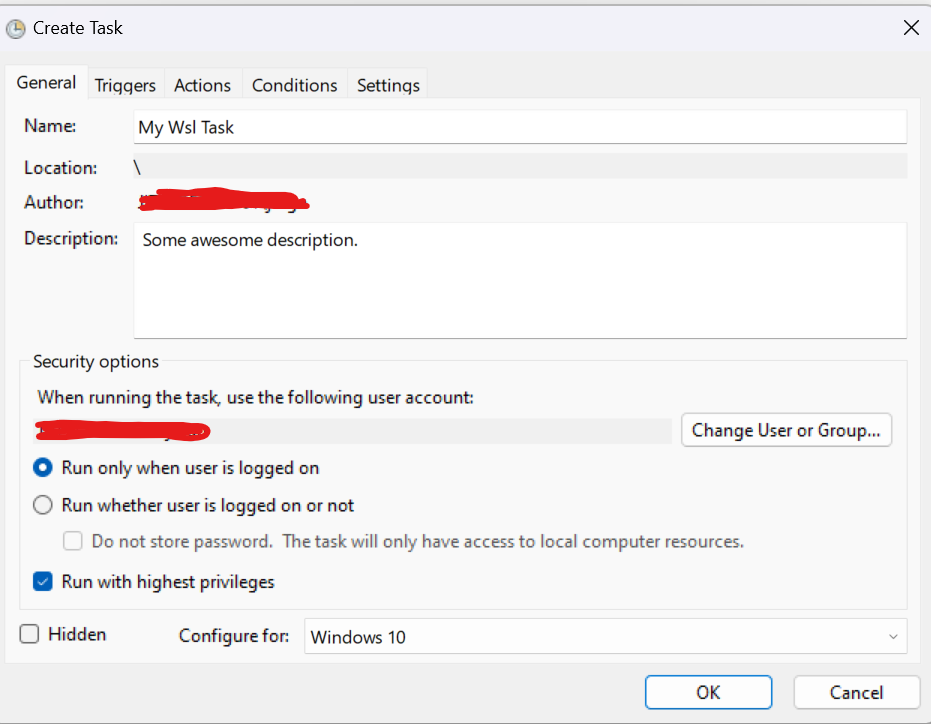
<p>Next up is the scheduler, which you can find by pressing win + r and typing in <code class="language-plaintext highlighter-rouge">taskschd.msc</code>.<br />
Right-click on the <code class="language-plaintext highlighter-rouge">Task Scheduler Library</code> and select <code class="language-plaintext highlighter-rouge">Create Task</code>.</p>

<p>Name the task to an appropriate name and add some type of description to remind you of what it does (not like we visit the scheduler that often!).
The following boxes should be checked under the <code class="language-plaintext highlighter-rouge">General</code> tab:</p>

<ul>
  <li>Run only when user is logged on</li>
  <li>Run with highest privileges</li>
</ul>

<p><img src="/assets/images/2024-10-22-wslvhdx/generaltab.png" alt="generaltab.png" /></p>

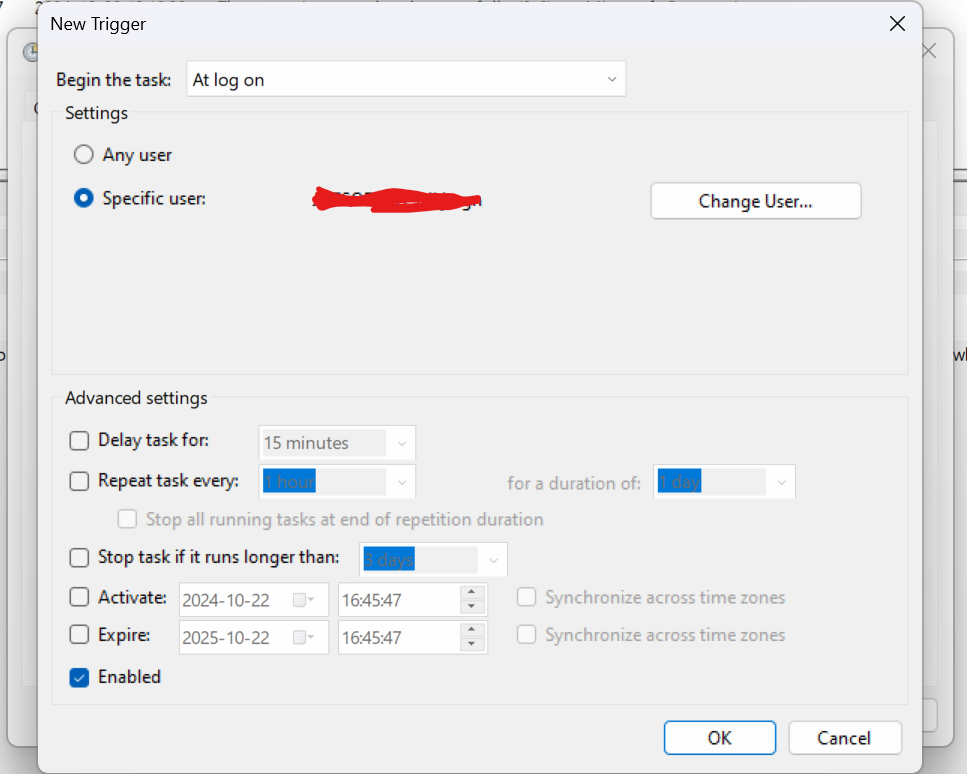
<p>The next tab to go to is the <code class="language-plaintext highlighter-rouge">Trigger</code> tab, here you should press <code class="language-plaintext highlighter-rouge">New</code> to create a new trigger.</p>

<p>We want the trigger to happen on login for our specific user, so change the <code class="language-plaintext highlighter-rouge">Begin the task</code> dropdown to <code class="language-plaintext highlighter-rouge">At log on</code>
and toggle <code class="language-plaintext highlighter-rouge">Specific user</code>.<br />
Press <code class="language-plaintext highlighter-rouge">Ok</code> and the trigger will be created.</p>

<p><img src="/assets/images/2024-10-22-wslvhdx/trigger.png" alt="trigger.png" /></p>

<p>The final thing we need to do is to create the action that will be triggered, this is done in the <code class="language-plaintext highlighter-rouge">Action</code> tab.<br />
The action to use is <code class="language-plaintext highlighter-rouge">Start a program</code> (which is the only non-deprecated action), and the Program/Script we want to run
is our <code class="language-plaintext highlighter-rouge">mount-wsl.cmd</code> script.</p>

<p>Select it with the <code class="language-plaintext highlighter-rouge">Browse</code> button and press Ok, no arguments needed.</p>

<p>If your on a desktop computer, you’re done. Save the Task and press <code class="language-plaintext highlighter-rouge">Run</code> to see if it works as intended.<br />
If your on a laptop, there is one last thing you might want to change:</p>

<p>In the <code class="language-plaintext highlighter-rouge">Conditions</code> tab, there are two checkboxes:</p>

<p><code class="language-plaintext highlighter-rouge">Start the task only if the computer is on AC power</code> and <code class="language-plaintext highlighter-rouge">Stop if the computer switches to battery power</code>.<br />
It’s likely that you wish to change those two, seeing the task in question is very low power and a fire-and-forget task.</p>

<p>And that’s it.</p>

<h2 id="final-words">Final words</h2>

<p>This post is mainly intended as a reminder to myself (as I had to re-do it on a new computer just a bit ago), while it could
be useful for others as well, so hope you enjoyed it!</p>]]></content><author><name>Johannes Tegnér</name></author><category term="misc" /><category term="windows" /><category term="misc" /><category term="windows" /><summary type="html"><![CDATA[How to set up automount of VHDX files into WSL(2) on Windows 11.]]></summary></entry><entry><title type="html">Percona XtraDB setup</title><link href="https://jite.eu/2023/12/7/percona-setup/" rel="alternate" type="text/html" title="Percona XtraDB setup" /><published>2023-12-07T14:00:00+01:00</published><updated>2023-12-07T14:00:00+01:00</updated><id>https://jite.eu/2023/12/7/percona-setup</id><content type="html" xml:base="https://jite.eu/2023/12/7/percona-setup/"><![CDATA[<p>I have been trying to write a post about Percona - and especially the operators - for a while. 
It’s a tool which I first encountered a while back, while researching an alternative to KubeDB (another good project) after their licensing changes.<br />
I never got too much into it back then, seeing I decided to go with managed databases at that point, but after visiting 
<a href="https://jite.eu/2023/10/13/civo-navigate-eu/">Civo Navigate</a> back in september and a followup chat with percona
I decided to dive a bit deeper into it.</p>

<p>I really like the ease of setting it up, and the fact that they support a wide array of database engines makes their
operators very useful.</p>

<p>In this post, we will focus on XtraDB, which is their mysql version with backup and clustering capabilities.<br />
We will go through the installation of the operator as well as what I find most important in the
custom resource which will allow us to provision a full XtraDb cluster with backups and proxying.<br />
This is what I’ve been using the most, and I’ll try to create a post at a later date with some benchmarks to show
how it compares with other databases.</p>

<p>Running databases in kubernetes (or docker) have earlier been a big no-no, this is not as much of an issue now ‘a days, especially
when using good storage types.<br />
In this writeup, I’ll use my default storage class which on my k3s cluster is a mounted disk on Hetzner, they are
decent in speed, but seeing it’s just a demo, the speed doesn’t matter much!</p>

<h2 id="prerequisites">Prerequisites</h2>

<p>Percona xtradb makes use of cert-manager to generate TLS certificated, it will automatically
create an issuer (namespaced) for your resources, but you do need to have cert-manager installed.<br />
This post will <em>not</em> cover the installation, and I would recommend that you take a look at the
official <a href="https://cert-manager.io/">cert-manager doucmentation</a> for installation instructions.</p>

<h2 id="helm-installation">Helm installation</h2>

<p>The first thing we have to do is to install the helm charts and deploy them to a kubernetes cluster.<br />
In this post, we will as I said earlier, use the Mysql version of percona, and we will use the operator that is
supplied by percona.</p>

<p class="info-box info">If you want to dive deeper, you can find the <a href="https://docs.percona.com/percona-operator-for-mysql/pxc/index.html">documentation here</a>!</p>

<p>Percona supplies their own helm charts for the operator via GitHub, so adding it to helm is easily done with</p>

<div class="language-shell highlighter-rouge"><div class="highlight"><pre class="highlight"><code>helm repo add percona https://percona.github.io/percona-helm-charts/
helm repo update
</code></pre></div></div>

<p>If you haven’t worked with helm before, the above snippet will add it to your local repository and allow you to install
charts from the repo we add.</p>

<p>If you just want to install the operator right away, you can do this by invoking the <code class="language-plaintext highlighter-rouge">helm install</code> command, but we 
might want to look a bit at the values we can pass to the operator first, to customize it slightly.</p>

<p>The full chart can be found on <a href="https://github.com/percona/percona-helm-charts/tree/main/charts/pxc-operator">GitHub</a>, where you should
be able to see all the customizable values in the <code class="language-plaintext highlighter-rouge">values.yml</code> file (the ones set are the default values).<br />
In the case of this operator, the default values are quite sane, it will create a service account and set up the RBAC
values required for it to monitor the CRD:s.<br />
But, one thing that you might want to change is the value for <code class="language-plaintext highlighter-rouge">watchAllNamespaces</code>.<br />
The default value here is <code class="language-plaintext highlighter-rouge">false</code>, which will only allow you to create new clusters in the same namespace
as the operator. This might be a good idea if you have multiple tenants in the cluster, and you don’t want
all of them to have access to the operator, while for me, making it a cluster-wide operator is far more useful.</p>

<p>To tell the helm chart that we want it to change the said value, we can either pass it directly in the install
command, or we can set up a <code class="language-plaintext highlighter-rouge">values</code> file for our specific installation.<br />
When you change a lot of values, or you want to source-control your overrides, a file is for sure more useful.</p>

<p>To create an override file, you need to create a <code class="language-plaintext highlighter-rouge">values.yml</code> (you can actually name it whatever you want)
where you set the values you want to change, the format is the same as in the above repository values.yml file,
so if we only want to change the namespaces parameter it would look like this:</p>

<div class="language-yaml highlighter-rouge"><div class="highlight"><pre class="highlight"><code><span class="na">watchAllNamespaces</span><span class="pi">:</span> <span class="no">true</span>
</code></pre></div></div>

<p>But any value in the default values file can be changed.</p>

<p>Installing the operator with the said values file is done by invoking the following command:</p>

<div class="language-shell highlighter-rouge"><div class="highlight"><pre class="highlight"><code>helm <span class="nb">install </span>percona-xtradb-operator percona/pxc-operator <span class="nt">-f</span> values.yml <span class="nt">--namespace</span> xtradb <span class="nt">--create-namespace</span>
</code></pre></div></div>

<p>The above command will install the chart as <code class="language-plaintext highlighter-rouge">percona-xtradb-operator</code> in the <code class="language-plaintext highlighter-rouge">xtradb</code> namespace.<br />
You can change namespace as you wish, and it will create the namespace for you.<br />
If you don’t want the namespace to be created (using another one or default) skip the <code class="language-plaintext highlighter-rouge">--create-namespace</code> flag.<br />
Without using the namespace flag, the operator will be installed in the <code class="language-plaintext highlighter-rouge">default</code> namespace.<br />
The file we changed is passed via the <code class="language-plaintext highlighter-rouge">-f</code> flag, and will override any values already defined in the default values file.</p>

<p class="info-box info">When we set the <code class="language-plaintext highlighter-rouge">watchAllNamespaces</code> value, the helm installation will create cluster wide roles and bindings, this does not happen if it’s not set
but is required for the operator to be able to look for and manage clusters in all namespaces.</p>

<p>If you don’t want to use a custom values file, passing values to helm is done easily by the following flags:</p>

<div class="language-shell highlighter-rouge"><div class="highlight"><pre class="highlight"><code>helm <span class="nb">install </span>percona-xtradb-operator percona/pxc-operator <span class="nt">--namespace</span> xtradb <span class="nt">--set</span> <span class="nv">watchAllNamespaces</span><span class="o">=</span><span class="nb">true</span>
</code></pre></div></div>

<h3 id="multi-arch-clusters">Multi Arch clusters</h3>

<p>Currently, the operator images (and other as well) are only available for the AMD64 architecture, so in cases where you use nodes
which are based on another architecture (like me who use a lot of ARM64), you might want to set the <code class="language-plaintext highlighter-rouge">nodeSelector</code>
value in your override to only use amd64 nodes:</p>

<div class="language-yaml highlighter-rouge"><div class="highlight"><pre class="highlight"><code><span class="na">nodeSelector</span><span class="pi">:</span>
  <span class="na">kubernetes.io/arch</span><span class="pi">:</span> <span class="s">amd64</span>
</code></pre></div></div>

<p>To update your installation, instead of using <code class="language-plaintext highlighter-rouge">install</code> (which will make helm yell about already having it installed)
you use the upgrade command:</p>

<div class="language-shell highlighter-rouge"><div class="highlight"><pre class="highlight"><code>helm upgrade percona-xtradb-operator percona/pxc-operator <span class="nt">-f</span> values.yml <span class="nt">--namespace</span> xtradb
</code></pre></div></div>

<p class="info-box info">If you are lazy like me, you can actually use the above command with the <code class="language-plaintext highlighter-rouge">--install</code> flagg to install as well.</p>

<h2 id="percona-xtradb-crds">Percona xtradb CRD:s</h2>

<p>As with most operators, the xtradb operator comes with a few custom resource definitions to allow easy
creation of new clusters.</p>

<p>We can install a new db cluster with helm as well, but I prefer to version control my resources
and I really enjoy using the CRD:s supplied by operators I use, so we will go with that!</p>

<p>So, to install a new percona xtradb cluster, we will create a new kubernetes resource as a yaml manifest.</p>

<p>The cluster uses the api version <code class="language-plaintext highlighter-rouge">pxc/percona.com/v1</code> and the kind we are after is <code class="language-plaintext highlighter-rouge">PerconaXtraDBCluster</code>.<br />
There are a lot of configuration that can be done, and a lot you really should look deeper into if you are
intending to run the cluster in production (especially the TLS options and how to encrypt the data at rest).<br />
But to keep this post under a million words, I’ll focus on the things we need to just get a cluster up and running!</p>

<p>As with all kubernetes resources, we will need a bit of metadata to allow kubernetes to know where and what to create:</p>

<div class="language-yaml highlighter-rouge"><div class="highlight"><pre class="highlight"><code><span class="na">apiVersion</span><span class="pi">:</span> <span class="s">pxc.percona.com/v1</span>
<span class="na">kind</span><span class="pi">:</span> <span class="s">PerconaXtraDBCluster</span>
<span class="na">metadata</span><span class="pi">:</span>
  <span class="na">name</span><span class="pi">:</span> <span class="s">cluster1-test</span>
  <span class="na">namespace</span><span class="pi">:</span> <span class="s">private</span>
</code></pre></div></div>

<p>In the above manifest, I’m telling kubernetes that we want a PerconaXtraDBCluster set up in the <code class="language-plaintext highlighter-rouge">private</code> namespace
using the name <code class="language-plaintext highlighter-rouge">cluster1-test</code>.<br />
There are a few extra finalizers we can add to the metadata to hint to the operator how we want it to handle removal of
clusters, the ones that are available are the following:</p>

<ul>
  <li>delete-pods-in-order</li>
  <li>delete-pxc-pvc</li>
  <li>delete-proxysql-pvc</li>
  <li>delete-ssl</li>
</ul>

<p>These might be important to set up correctly, as they will allow for the operator to remove PVC:s and other
configurations which we want it to remove on cluster deletion.<br />
If you do want to save the claims and such, you should <em>not</em> include the finalizers in the metadata.</p>

<h3 id="sepc">Sepc</h3>

<p>After the metadata have been set, we want to start working on the specification of the resource.<br />
There is a lot of customization tha can be done in the manifest, but the most important sections are the following:</p>

<ul>
  <li><code class="language-plaintext highlighter-rouge">tls</code> (which allows us to use cert-manager to configure mTLS for the cluster)</li>
  <li><code class="language-plaintext highlighter-rouge">upgradeOptions</code> (which allows us to set up upgrades of the running mysql servers)</li>
  <li><code class="language-plaintext highlighter-rouge">pxc</code> (the configuration for the actual percona xtradb cluster)</li>
  <li><code class="language-plaintext highlighter-rouge">haproxy</code> (configuration for the HAProxy which runs in front of the cluster)</li>
  <li><code class="language-plaintext highlighter-rouge">proxysql</code> (configuration for the ProxySQL instances in front of the cluster)</li>
  <li><code class="language-plaintext highlighter-rouge">logcollector</code> (well, for logging of course!)</li>
  <li><code class="language-plaintext highlighter-rouge">pmm</code> (Percona monitor and management, which allows us to monitor the instances)</li>
  <li><code class="language-plaintext highlighter-rouge">backup</code> (this one you can probably guess the usage for!)</li>
</ul>

<h4 id="tls">TLS</h4>

<p>In this writeup I will leave this with the default values (and not even add it to the manifest), that way
the cluster will create its own issuer and just issue tls certificates as it needs to, but if you want the
certificate to be a bit more constrained, you can here set boh which issuer to use (or create)
as well as the SANs to use.</p>

<h4 id="upgradeoptions">UpgradeOptions</h4>

<p>Keeping your database instances up to date automatically is quite a sweet feature. Now, we don’t always want to do this
seeing we sometimes want to use the exact same version in the cluster as in another database (if we got multiple environments for example)
or if we want to stay on a version we know is stable.<br />
But, if we want to live on the edge and use the latest version, or stay inside a patch version of the current version we use
this section is very good.</p>

<p>There are three values that can be set in the <code class="language-plaintext highlighter-rouge">upgradeOptions</code> section, and they handle the scheduling, where to look and 
the version constraints we want to sue.</p>

<div class="language-yaml highlighter-rouge"><div class="highlight"><pre class="highlight"><code><span class="na">upgradeOptions</span><span class="pi">:</span>
  <span class="na">versionServiceEndpoint</span><span class="pi">:</span> <span class="s1">'</span><span class="nv"> </span><span class="s">https://check.percona.com'</span>
  <span class="na">apply</span><span class="pi">:</span> <span class="s1">'</span><span class="s">8.0-latest'</span>
  <span class="na">schedule</span><span class="pi">:</span> <span class="s1">'</span><span class="s">0</span><span class="nv"> </span><span class="s">4</span><span class="nv"> </span><span class="s">*</span><span class="nv"> </span><span class="s">*</span><span class="nv"> </span><span class="s">*'</span>
</code></pre></div></div>

<p>The <code class="language-plaintext highlighter-rouge">versionServiceEndpoint</code> flag should probably always be <code class="language-plaintext highlighter-rouge">https://check.percona.com</code>, but if there are others
you can probably switch. I’m not sure about this though, so to be safe, I keep it at the default one!</p>

<p><code class="language-plaintext highlighter-rouge">apply</code> can be used to set a constraint or disable the upgrade option all together.<br />
If you don’t want your installations to upgrade, just set it to <code class="language-plaintext highlighter-rouge">disabled</code>, then it will not run at all.<br />
In the above example, I’ve set the version constraint to use the <code class="language-plaintext highlighter-rouge">latest</code> version of the 8.0 mysql branch.<br />
This can be set to a wide array of values, for more detailed info, I recommend checking the <a href="https://docs.percona.com/percona-operator-for-mysql/pxc/update.html#automated-upgrade">percona docs</a>.</p>

<p>The Schedule is a cron-formatted value, in this case, at 4am every day, to continuously check, set it to <code class="language-plaintext highlighter-rouge">* * * * *</code>!</p>

<h4 id="pxc">pxc</h4>

<p>The pxc section of the manifest handles the actual cluster setup.<br />
It got quite a few options, and I’ll only cover the ones I deem most important to just run a cluster, while
as said earlier, if you are intending to run this in production, make sure you check the documentation or read the
CRD specification for all available options.</p>

<div class="language-yaml highlighter-rouge"><div class="highlight"><pre class="highlight"><code><span class="na">spec</span><span class="pi">:</span>
  <span class="na">pxc</span><span class="pi">:</span>
    <span class="na">nodeSelector</span><span class="pi">:</span>
      <span class="na">kubernetes.io/arch</span><span class="pi">:</span> <span class="s">amd64</span>
    <span class="na">size</span><span class="pi">:</span> <span class="m">3</span>
    <span class="na">image</span><span class="pi">:</span> <span class="s">percona/percona-xtradb-cluster:8.0.32-24.2</span>
    <span class="na">autoRecovery</span><span class="pi">:</span> <span class="no">true</span>
    <span class="na">expose</span><span class="pi">:</span>
      <span class="na">enabled</span><span class="pi">:</span> <span class="no">false</span>
    <span class="na">resources</span><span class="pi">:</span>
      <span class="na">requests</span><span class="pi">:</span>
        <span class="na">memory</span><span class="pi">:</span> <span class="s">256M</span>
        <span class="na">cpu</span><span class="pi">:</span> <span class="s">100m</span>
      <span class="na">limits</span><span class="pi">:</span>
        <span class="na">memory</span><span class="pi">:</span> <span class="s">512M</span>
        <span class="na">cpu</span><span class="pi">:</span> <span class="s">200m</span>
    <span class="na">volumeSpec</span><span class="pi">:</span>
      <span class="na">persistentVolumeClaim</span><span class="pi">:</span>
        <span class="na">storageClassName</span><span class="pi">:</span> <span class="s1">'</span><span class="s">hcloud-volumes'</span>
        <span class="na">accessModes</span><span class="pi">:</span>
          <span class="pi">-</span> <span class="s">ReadWriteOnce</span>
        <span class="na">resources</span><span class="pi">:</span>
          <span class="na">requests</span><span class="pi">:</span>
            <span class="na">storage</span><span class="pi">:</span> <span class="s">5Gi</span>
</code></pre></div></div>

<p>The size variable will tell the operator how many individual mysql instances we want to run.<br />
3 is a good one, seeing most clustered programs prefer 3 or more instances.</p>

<p>The image should presumably be one of the percona images in this case, to allow updates and everything to work as smoothly as possible.<br />
I haven’t peeked enough into the images, but I do expect that there is some custom things in the images
to make them run fine, which makes me want to stick to the default images rather than swapping to another!</p>

<p><code class="language-plaintext highlighter-rouge">autoRecovery</code> should probably almost always be set to <code class="language-plaintext highlighter-rouge">true</code>, this will allow the Automatic Crash Recovery
functionality to work, which I expect is something most people prefer to have.</p>

<p>I would expect that you know how <code class="language-plaintext highlighter-rouge">resources</code> works in kubernetes, but I included it in the example to make sure that 
its seen, as you usually want to be able to set those yourself. The values set above are probably
quite a bit low when you want to be able to use the database for more than just testing, so set them accordingly,
just remember that it’s for each container, not the whole cluster!</p>

<p>The <code class="language-plaintext highlighter-rouge">volumeSpec</code> is quite important. In the above example, I use my default volume type, which is a RWO type of disk
the size is set to 10Gi. The size should probably either be larger or possible to expand on short notice.</p>

<p>There are two more keys which can be quite useful if you wish to customize your database a bit more, and especially
if you want to finetune it.<br />
Percona xtradb comes with quite sane defaults, but when working with databases, it’s not unusual that you need
to enter some custom params to the <code class="language-plaintext highlighter-rouge">my.cnf</code> file.</p>

<h5 id="environment-variables">Environment variables</h5>

<p>The percona pxc configuration does not currently allow bare environment variables (from what I can see), but this is not
a huge issue, seeing the spec allows for a <code class="language-plaintext highlighter-rouge">envVarsSecret</code> to be set.<br />
The secret must of course be in the same namespace as the resources, but any variables in it will be loaded as 
environment variables into the pod.<br />
I’m not certain what environment variables are available for the pxc section, but will try to update this part when I got more
info on it.</p>

<h5 id="configuration">Configuration</h5>

<p>The <code class="language-plaintext highlighter-rouge">configuration</code> property expects a string, the string is a mysql configuration file, i.e, the values that you usually
put in the <code class="language-plaintext highlighter-rouge">my.cnf</code> file.</p>

<div class="language-yaml highlighter-rouge"><div class="highlight"><pre class="highlight"><code><span class="na">spec</span><span class="pi">:</span>
  <span class="na">pxc</span><span class="pi">:</span>
    <span class="na">configuration</span><span class="pi">:</span> <span class="pi">|</span>
      <span class="s">[mysqld]</span>
      <span class="s">innodb_write_io_threads = 8</span>
      <span class="s">innodb_read_io_threads = 8</span>
</code></pre></div></div>

<h4 id="haproxy-and-proxysql">HAProxy and ProxySQL</h4>

<p>Percona allows you to choose between two proxies to use for loadbalancing, which is quite nice.<br />
The available proxies are <a href="https://www.haproxy.org/">HAProxy</a> and <a href="https://proxysql.com/">ProxySQL</a>, both
valid choices which are well tried in the industry for loadbalancing and proxying.</p>

<p>The one you choose should have the property <code class="language-plaintext highlighter-rouge">enabled</code> set to true, and the other one set to false.</p>

<p>The most “default” configuration you can use would look like this:</p>

<div class="language-yaml highlighter-rouge"><div class="highlight"><pre class="highlight"><code><span class="c1"># With haproxy</span>
<span class="na">spec</span><span class="pi">:</span>
  <span class="na">haproxy</span><span class="pi">:</span>
    <span class="na">nodeSelector</span><span class="pi">:</span>
      <span class="na">kubernetes.io/arch</span><span class="pi">:</span> <span class="s">amd64</span>
    <span class="na">enabled</span><span class="pi">:</span> <span class="no">true</span>
    <span class="na">size</span><span class="pi">:</span> <span class="m">3</span>
    <span class="na">image</span><span class="pi">:</span> <span class="s">percona/percona-xtradb-cluster-operator:1.13.0-haproxy</span>
    <span class="na">resources</span><span class="pi">:</span>
      <span class="na">requests</span><span class="pi">:</span>
        <span class="na">memory</span><span class="pi">:</span> <span class="s">256M</span>
        <span class="na">cpu</span><span class="pi">:</span> <span class="s">100m</span>
<span class="c1"># With proxysql</span>
<span class="na">spec</span><span class="pi">:</span>
  <span class="na">proxysql</span><span class="pi">:</span>
    <span class="na">nodeSelector</span><span class="pi">:</span>
      <span class="na">kubernetes.io/arch</span><span class="pi">:</span> <span class="s">amd64</span>
    <span class="na">enabled</span><span class="pi">:</span> <span class="no">true</span>
    <span class="na">size</span><span class="pi">:</span> <span class="m">3</span>
    <span class="na">image</span><span class="pi">:</span> <span class="s">percona/percona-xtradb-cluster-operator:1.13.0-proxysql</span>
    <span class="na">resources</span><span class="pi">:</span>
      <span class="na">requests</span><span class="pi">:</span>
        <span class="na">memory</span><span class="pi">:</span> <span class="s">256M</span>
        <span class="na">cpu</span><span class="pi">:</span> <span class="s">100m</span>
    <span class="na">volumeSpec</span><span class="pi">:</span>
      <span class="na">emptyDir</span><span class="pi">:</span> <span class="pi">{}</span>
</code></pre></div></div>

<p>The size should be at the least 2 (can be set to 1 if you use <code class="language-plaintext highlighter-rouge">allowUnsafeConfigurations</code> but that’s not recommended).<br />
The image is just as with the pxc configuration most likely best to use the percona provided images (in this case 1.13.0, same version as the percona operator).</p>

<p>As always, the resources aught to be finetuned to fit your needs, the above is on the lower end, but could work okay for a smaller
cluster which does not have huge traffic.</p>

<p>Both of the sections allow for (just as with pxc section) to supply both environment variables via the <code class="language-plaintext highlighter-rouge">envVarsSecret</code> as 
well as a <code class="language-plaintext highlighter-rouge">configuration</code> property. The configuration does of course differ and I would direct you to the proxy documentation
for more information about those!<br />
Now, something quite important to note here is that if you supply a configuration file, you need to supply the full file,
it doesn’t merge the default file but replaces it in full.<br />
So if you want to finetune the configuration, include the default configuration as well (and change it), this
applies to both haproxy and proxysql and will work the same if you use a configmap, secret or directly accessing
the <code class="language-plaintext highlighter-rouge">configuration</code> key.</p>

<p class="info-box alert">The choice of proxy might be important to decide on at creation of the resource, if you use proxysql, you can
(with a restart of the pods) switch to haproxy, while if you choose haproxy, you can’t change the cluster to use
proxysql. So I would highly recommend that you decide which to use before creating the cluster.</p>

<p>There are a lot more variables you can set here, and all of them can be found at the <a href="https://docs.percona.com/percona-operator-for-mysql/pxc/operator.html#haproxy-section">documentation page</a>.</p>

<h3 id="logcollector">LogCollector</h3>

<p>Logs are nice, we love logs! Percona seems to as well, because they supply us with a
section for configuring a <a href="https://fluentbit.io/">fluent bit</a> log collector right in the manifest! No need for any sidecars,
just turn it on and start collecting :)</p>

<p class="info-box info">If you already have some type of logging system which captures all pods logs and such, this might not be useful
and you can set the <code class="language-plaintext highlighter-rouge">enabled</code> value to <code class="language-plaintext highlighter-rouge">false</code> and ignore this section.</p>

<p>The log collector specification is quite slim, and looks something like this:</p>

<div class="language-yaml highlighter-rouge"><div class="highlight"><pre class="highlight"><code><span class="na">spec</span><span class="pi">:</span>
  <span class="na">logcollector</span><span class="pi">:</span>
      <span class="na">enabled</span><span class="pi">:</span> <span class="no">true</span>
      <span class="na">image</span><span class="pi">:</span> <span class="s">percona/percona-xtradb-cluster-operator:1.13.0-logcollector</span>
      <span class="na">resources</span><span class="pi">:</span>
        <span class="na">requests</span><span class="pi">:</span>
          <span class="na">memory</span><span class="pi">:</span> <span class="s">64M</span>
          <span class="na">cpu</span><span class="pi">:</span> <span class="s">50m</span>
      <span class="na">configuration</span><span class="pi">:</span> <span class="s">...</span>
</code></pre></div></div>

<p>The default values might be enough, but the fluent bit <a href="https://docs.fluentbit.io/manual/administration/configuring-fluent-bit/yaml/configuration-file">documentation</a> got quite a bit of customization available if you really want to!</p>

<h3 id="ppm-monitoring">PPM (Monitoring)</h3>

<p>The xtradb server is able to push metrics and monitoring data to a PMM (percona monitoring &amp; management) service,
now, this is not installed with the cluster and needs to be set up separately, but if you want to make use of this (which I recommend, seeing how important monitoring is!)
the documentation can be found <a href="https://docs.percona.com/percona-monitoring-and-management/index.html">here</a>.</p>

<p>I haven’t researched this too much yet, but personally I would have loved to be able
to scrape the instances with prometheus and have my dashboards in my standard Grafana instance, which I will ask
percona about if it’s possible. In either case, I’ll update this part with more information when I figure it out!</p>

<h3 id="backups">Backups</h3>

<p>Backups, one of the most important parts of keeping a database up and running without angry customers questioning you
about where their 5 years of data has gone after a database failure… Well, percona helps us with that too, thankfully!</p>

<p>The percona backup section allows us to define a bunch of different storage engines to use to store our backups, this is great, because we don’t
always want to store our backups on the same disks or systems as we run our cluster. The most useful way to
store backups is likely to store them in a s3 compatible storage, which can be done, but if you really want to
you can store them either in a PV or even on the local disk of the node.
We can even define multiple storages to use with different schedules!</p>

<div class="language-yaml highlighter-rouge"><div class="highlight"><pre class="highlight"><code><span class="na">spec</span><span class="pi">:</span>
  <span class="na">backup</span><span class="pi">:</span>
  <span class="na">image</span><span class="pi">:</span> <span class="s">perconalab/percona-xtradb-cluster-operator:main-pxc8.0-backup</span>
  <span class="na">storages</span><span class="pi">:</span>
    <span class="na">s3Storage</span><span class="pi">:</span>
      <span class="na">type</span><span class="pi">:</span> <span class="s1">'</span><span class="s">s3'</span>
      <span class="na">nodeSelector</span><span class="pi">:</span>
        <span class="na">kubernetes.io/arch</span><span class="pi">:</span> <span class="s">amd64</span>
      <span class="na">s3</span><span class="pi">:</span>
        <span class="na">bucket</span><span class="pi">:</span> <span class="s1">'</span><span class="s">my-bucket'</span>
        <span class="na">credentialsSecret</span><span class="pi">:</span> <span class="s1">'</span><span class="s">my-credentials-secret'</span>
        <span class="na">endpointUrl</span><span class="pi">:</span> <span class="s1">'</span><span class="s">the-s3-service-i-like-to-use.com'</span>
        <span class="na">region</span><span class="pi">:</span> <span class="s1">'</span><span class="s">eu-east-1'</span>
    <span class="na">local</span><span class="pi">:</span>
      <span class="na">type</span><span class="pi">:</span> <span class="s1">'</span><span class="s">filesystem'</span>
      <span class="na">nodeSelector</span><span class="pi">:</span>
        <span class="na">kubernetes.io/arch</span><span class="pi">:</span> <span class="s">amd64</span>
      <span class="na">volume</span><span class="pi">:</span>
        <span class="na">persistentVolumeClaim</span><span class="pi">:</span>
          <span class="na">accessModes</span><span class="pi">:</span>
            <span class="pi">-</span> <span class="s">ReadWriteOnce</span>
          <span class="na">resources</span><span class="pi">:</span>
            <span class="na">requests</span><span class="pi">:</span>
              <span class="na">storage</span><span class="pi">:</span> <span class="s">10G</span>
  <span class="na">schedule</span><span class="pi">:</span>
    <span class="pi">-</span> <span class="na">name</span><span class="pi">:</span> <span class="s1">'</span><span class="s">daily'</span>
      <span class="na">schedule</span><span class="pi">:</span> <span class="s1">'</span><span class="s">0</span><span class="nv"> </span><span class="s">0</span><span class="nv"> </span><span class="s">*</span><span class="nv"> </span><span class="s">*</span><span class="nv"> </span><span class="s">*'</span>
      <span class="na">keep</span><span class="pi">:</span> <span class="m">3</span>
      <span class="na">storageName</span><span class="pi">:</span> <span class="s">s3Storage</span>
    <span class="pi">-</span> <span class="na">name</span><span class="pi">:</span> <span class="s1">'</span><span class="s">hourly'</span>
      <span class="na">schedule</span><span class="pi">:</span> <span class="s1">'</span><span class="s">0</span><span class="nv"> </span><span class="s">*</span><span class="nv"> </span><span class="s">*</span><span class="nv"> </span><span class="s">*</span><span class="nv"> </span><span class="s">*'</span>
      <span class="na">keep</span><span class="pi">:</span> <span class="m">2</span>
      <span class="na">storageName</span><span class="pi">:</span> <span class="s1">'</span><span class="s">local'</span>
</code></pre></div></div>

<p>In the above yaml, we have set up two different storage types. One <code class="language-plaintext highlighter-rouge">s3</code> type and one <code class="language-plaintext highlighter-rouge">filesystem</code> type.<br />
The s3 type is pointed to a bucket in my special s3-compatible storage while the filesystem one makes use of a persistent volume.</p>

<p>In the <code class="language-plaintext highlighter-rouge">schedule</code> section, we set it to create a daily backup to the s3 storage (and keep the 3 latest ones) while the 
local storage one will keep 3 and run every hour.</p>

<p>Each section under <code class="language-plaintext highlighter-rouge">storages</code> will spawn a new container, so we can change the resources and such for each of them (and you might want to)
and they will by default re-try creation of the backup 6 times (can be changed by setting the <code class="language-plaintext highlighter-rouge">spec.backup.backoffLimit</code> to a higher value).</p>

<p>There is <em>a lot</em> of options for backups, and I would highly recommend to take a look at the <a href="https://docs.percona.com/percona-operator-for-mysql/pxc/operator.html#backup-section">docs</a> for it!</p>

<h5 id="point-in-time">Point in time</h5>

<p>One thing that could be quite useful when working with backups for databases is point in time recovery.<br />
Percona xtradb have this available in the backup section under the <code class="language-plaintext highlighter-rouge">pitr</code> section:</p>

<div class="language-yaml highlighter-rouge"><div class="highlight"><pre class="highlight"><code><span class="na">spec</span><span class="pi">:</span>
  <span class="na">backup</span><span class="pi">:</span>
    <span class="na">pitr</span><span class="pi">:</span>
      <span class="na">storageName</span><span class="pi">:</span> <span class="s1">'</span><span class="s">local'</span>
      <span class="na">enabled</span><span class="pi">:</span> <span class="no">true</span>
      <span class="na">timeBetweenUploads</span><span class="pi">:</span> <span class="m">60</span>
</code></pre></div></div>

<p>It makes use of the same <code class="language-plaintext highlighter-rouge">storage</code> as defined in the <code class="language-plaintext highlighter-rouge">storages</code> section, and you can set the interval on PIT uploads.</p>

<h4 id="restoring-a-backup">Restoring a backup</h4>

<p>Sometimes our databases fails very badly, or we get some bad data injected into it. In cases like those
we need to restore an earlier backup of said database.<br />
I won’t cover this in this blogpost, as it’s too much to cover in a h4 in a tutorial like this, 
but I’ll make sure to create a new post with disaster scenarios and how percona handles them.</p>

<p>If you really need to recover your data right now (before my next post) I would recommend that you either
read the <a href="https://docs.percona.com/percona-operator-for-mysql/pxc/backups.html">Backup and restore</a> and <a href="https://docs.percona.com/percona-operator-for-mysql/pxc/backups-restore-to-new-cluster.html">“How to restore backup to a new kubernetes-based environment”</a>
section in the documentation.</p>

<h2 id="the-full-chart">The full chart</h2>

<p>Now, when we have had a look at the different sections, we can set up our full chart:</p>

<div class="language-yaml highlighter-rouge"><div class="highlight"><pre class="highlight"><code><span class="na">apiVersion</span><span class="pi">:</span> <span class="s">pxc.percona.com/v1</span>
<span class="na">kind</span><span class="pi">:</span> <span class="s">PerconaXtraDBCluster</span>
<span class="na">metadata</span><span class="pi">:</span>
  <span class="na">name</span><span class="pi">:</span> <span class="s">cluster2-test</span>
  <span class="na">namespace</span><span class="pi">:</span> <span class="s">private</span>
<span class="na">spec</span><span class="pi">:</span>
  <span class="na">upgradeOptions</span><span class="pi">:</span>
    <span class="na">versionServiceEndpoint</span><span class="pi">:</span> <span class="s1">'</span><span class="nv"> </span><span class="s">https://check.percona.com'</span>
    <span class="na">apply</span><span class="pi">:</span> <span class="s1">'</span><span class="s">8.0-latest'</span>
    <span class="na">schedule</span><span class="pi">:</span> <span class="s1">'</span><span class="s">0</span><span class="nv"> </span><span class="s">4</span><span class="nv"> </span><span class="s">*</span><span class="nv"> </span><span class="s">*</span><span class="nv"> </span><span class="s">*'</span>
  <span class="na">pxc</span><span class="pi">:</span>
    <span class="na">size</span><span class="pi">:</span> <span class="m">3</span>
    <span class="na">nodeSelector</span><span class="pi">:</span>
      <span class="na">kubernetes.io/arch</span><span class="pi">:</span> <span class="s">amd64</span>
    <span class="na">image</span><span class="pi">:</span> <span class="s">percona/percona-xtradb-cluster:8.0.32-24.2</span>
    <span class="na">autoRecovery</span><span class="pi">:</span> <span class="no">true</span>
    <span class="na">expose</span><span class="pi">:</span>
      <span class="na">enabled</span><span class="pi">:</span> <span class="no">false</span>
    <span class="na">resources</span><span class="pi">:</span>
      <span class="na">requests</span><span class="pi">:</span>
        <span class="na">memory</span><span class="pi">:</span> <span class="s">256M</span>
        <span class="na">cpu</span><span class="pi">:</span> <span class="s">100m</span>
      <span class="na">limits</span><span class="pi">:</span>
        <span class="na">memory</span><span class="pi">:</span> <span class="s">512M</span>
        <span class="na">cpu</span><span class="pi">:</span> <span class="s">200m</span>
    <span class="na">volumeSpec</span><span class="pi">:</span>
      <span class="na">persistentVolumeClaim</span><span class="pi">:</span>
        <span class="na">storageClassName</span><span class="pi">:</span> <span class="s1">'</span><span class="s">hcloud-volumes'</span>
        <span class="na">accessModes</span><span class="pi">:</span>
          <span class="pi">-</span> <span class="s">ReadWriteOnce</span>
        <span class="na">resources</span><span class="pi">:</span>
          <span class="na">requests</span><span class="pi">:</span>
            <span class="na">storage</span><span class="pi">:</span> <span class="s">5Gi</span>
  <span class="na">haproxy</span><span class="pi">:</span>
    <span class="na">enabled</span><span class="pi">:</span> <span class="no">true</span>
    <span class="na">nodeSelector</span><span class="pi">:</span>
      <span class="na">kubernetes.io/arch</span><span class="pi">:</span> <span class="s">amd64</span>
    <span class="na">size</span><span class="pi">:</span> <span class="m">3</span>
    <span class="na">image</span><span class="pi">:</span> <span class="s">percona/percona-xtradb-cluster-operator:1.13.0-haproxy</span>
    <span class="na">resources</span><span class="pi">:</span>
      <span class="na">requests</span><span class="pi">:</span>
        <span class="na">memory</span><span class="pi">:</span> <span class="s">256M</span>
        <span class="na">cpu</span><span class="pi">:</span> <span class="s">100m</span>
  <span class="na">proxysql</span><span class="pi">:</span>
    <span class="na">enabled</span><span class="pi">:</span> <span class="no">false</span>
  <span class="na">logcollector</span><span class="pi">:</span>
    <span class="na">enabled</span><span class="pi">:</span> <span class="no">true</span>
    <span class="na">image</span><span class="pi">:</span> <span class="s">percona/percona-xtradb-cluster-operator:1.13.0-logcollector</span>
    <span class="na">resources</span><span class="pi">:</span>
      <span class="na">requests</span><span class="pi">:</span>
        <span class="na">memory</span><span class="pi">:</span> <span class="s">64M</span>
        <span class="na">cpu</span><span class="pi">:</span> <span class="s">50m</span>
  <span class="na">backup</span><span class="pi">:</span>
    <span class="na">image</span><span class="pi">:</span> <span class="s">perconalab/percona-xtradb-cluster-operator:main-pxc8.0-backup</span>
    <span class="na">storages</span><span class="pi">:</span>
      <span class="na">s3Storage</span><span class="pi">:</span>
        <span class="na">type</span><span class="pi">:</span> <span class="s1">'</span><span class="s">s3'</span>
        <span class="na">nodeSelector</span><span class="pi">:</span>
          <span class="na">kubernetes.io/arch</span><span class="pi">:</span> <span class="s">amd64</span>
        <span class="na">s3</span><span class="pi">:</span>
          <span class="na">bucket</span><span class="pi">:</span> <span class="s1">'</span><span class="s">my-bucket'</span>
          <span class="na">credentialsSecret</span><span class="pi">:</span> <span class="s1">'</span><span class="s">my-credentials-secret'</span>
          <span class="na">endpointUrl</span><span class="pi">:</span> <span class="s1">'</span><span class="s">the-s3-service-i-like-to-use.com'</span>
          <span class="na">region</span><span class="pi">:</span> <span class="s1">'</span><span class="s">eu-east-1'</span>
      <span class="na">local</span><span class="pi">:</span>
        <span class="na">type</span><span class="pi">:</span> <span class="s1">'</span><span class="s">filesystem'</span>
        <span class="na">nodeSelector</span><span class="pi">:</span>
          <span class="na">kubernetes.io/arch</span><span class="pi">:</span> <span class="s">amd64</span>
        <span class="na">volume</span><span class="pi">:</span>
          <span class="na">persistentVolumeClaim</span><span class="pi">:</span>
            <span class="na">accessModes</span><span class="pi">:</span>
              <span class="pi">-</span> <span class="s">ReadWriteOnce</span>
            <span class="na">resources</span><span class="pi">:</span>
              <span class="na">requests</span><span class="pi">:</span>
                <span class="na">storage</span><span class="pi">:</span> <span class="s">10G</span>
    <span class="na">schedule</span><span class="pi">:</span>
      <span class="pi">-</span> <span class="na">name</span><span class="pi">:</span> <span class="s1">'</span><span class="s">daily'</span>
        <span class="na">schedule</span><span class="pi">:</span> <span class="s1">'</span><span class="s">0</span><span class="nv"> </span><span class="s">0</span><span class="nv"> </span><span class="s">*</span><span class="nv"> </span><span class="s">*</span><span class="nv"> </span><span class="s">*'</span>
        <span class="na">keep</span><span class="pi">:</span> <span class="m">3</span>
        <span class="na">storageName</span><span class="pi">:</span> <span class="s">s3Storage</span>
      <span class="pi">-</span> <span class="na">name</span><span class="pi">:</span> <span class="s1">'</span><span class="s">hourly'</span>
        <span class="na">schedule</span><span class="pi">:</span> <span class="s1">'</span><span class="s">0</span><span class="nv"> </span><span class="s">*</span><span class="nv"> </span><span class="s">*</span><span class="nv"> </span><span class="s">*</span><span class="nv"> </span><span class="s">*'</span>
        <span class="na">keep</span><span class="pi">:</span> <span class="m">2</span>
        <span class="na">storageName</span><span class="pi">:</span> <span class="s1">'</span><span class="s">local'</span>
    <span class="na">pitr</span><span class="pi">:</span>
      <span class="na">storageName</span><span class="pi">:</span> <span class="s1">'</span><span class="s">local'</span>
      <span class="na">enabled</span><span class="pi">:</span> <span class="no">true</span>
      <span class="na">timeBetweenUploads</span><span class="pi">:</span> <span class="m">60</span>
</code></pre></div></div>

<p>Now, to get the cluster running, just invoke kubectl and it’s done!</p>

<div class="language-shell highlighter-rouge"><div class="highlight"><pre class="highlight"><code>kubectl apply <span class="nt">-f</span> my-awesome-cluster.yml
</code></pre></div></div>

<p>It takes a while for the databases to start up (there are a lot of components to start up!) so you might have to wait a few minutes
before you can start play around with the database.<br />
Check the status of the resources with the <code class="language-plaintext highlighter-rouge">get</code> kubectl command:</p>

<div class="language-shell highlighter-rouge"><div class="highlight"><pre class="highlight"><code>kubectl get all <span class="nt">-n</span> private


NAME                                   READY   STATUS    RESTARTS   AGE
pod/cluster1-test-pxc-0                3/3     Running   0          79m
pod/cluster1-test-haproxy-0            2/2     Running   0          79m
pod/cluster1-test-haproxy-1            2/2     Running   0          78m
pod/cluster1-test-haproxy-2            2/2     Running   0          77m
pod/cluster1-test-pxc-1                3/3     Running   0          78m
pod/cluster1-test-pxc-2                3/3     Running   0          76m

NAME                                     TYPE        CLUSTER-IP      EXTERNAL-IP   PORT<span class="o">(</span>S<span class="o">)</span>                                 AGE
service/cluster1-test-pxc                ClusterIP   None            &lt;none&gt;        3306/TCP,33062/TCP,33060/TCP            79m
service/cluster1-test-pxc-unready        ClusterIP   None            &lt;none&gt;        3306/TCP,33062/TCP,33060/TCP            79m
service/cluster1-test-haproxy            ClusterIP   10.43.45.157    &lt;none&gt;        3306/TCP,3309/TCP,33062/TCP,33060/TCP   79m
service/cluster1-test-haproxy-replicas   ClusterIP   10.43.54.62     &lt;none&gt;        3306/TCP                                79m

NAME                                     READY   AGE
statefulset.apps/cluster1-test-haproxy   3/3     79m
statefulset.apps/cluster1-test-pxc       3/3     79m
</code></pre></div></div>

<p>When all StatefulSets are ready, you are ready to go!</p>

<h2 id="accessing-the-database">Accessing the database</h2>

<p>When a configuration as the one above is applied, a few services will be created.<br />
The service you most likely want to interact with is called <code class="language-plaintext highlighter-rouge">&lt;your-cluster-name&gt;-haproxy</code> (or <code class="language-plaintext highlighter-rouge">-proxysql</code> depending on proxy)
which will proxy your commands to the different backend mysql servers.<br />
From within the cluster it’s quite easy, just accessing the service, while outside will
require a loadbalancer service (which can be defined in the manifest) alternatively a ingress which can
expose the service to the outer net.</p>

<p>If you wish to test your database from within the cluster, you can run the following command:</p>

<div class="language-shell highlighter-rouge"><div class="highlight"><pre class="highlight"><code>kubectl run <span class="nt">-i</span> <span class="nt">--rm</span> <span class="nt">--tty</span> percona-client <span class="nt">--namespace</span> private <span class="nt">--image</span><span class="o">=</span>percona:8.0 <span class="nt">--restart</span><span class="o">=</span>Never <span class="nt">--</span> bash <span class="nt">-il</span>
percona-client:/<span class="nv">$ </span>mysql <span class="nt">-h</span> cluster1-haproxy <span class="nt">-uroot</span> <span class="nt">-proot_password</span>
</code></pre></div></div>

<p>The root password can be found in the <code class="language-plaintext highlighter-rouge">&lt;your-cluster-name&gt;-secrets</code> secret under the <code class="language-plaintext highlighter-rouge">root</code> key.</p>

<h2 id="final-words">Final words</h2>

<p>I really enjoy using percona xtradb, it allows for really fast setup of mysql clusters with backups enabled
and everything one might need.<br />
But, I’m quite new to the tool, and might have missed something vital or important!<br />
So please, let me know in the comments if something really important is missing or wrong.</p>]]></content><author><name>Johannes Tegnér</name></author><category term="databases" /><category term="kubernetes" /><category term="databases" /><category term="operations" /><category term="kubernetes" /><category term="percona" /><summary type="html"><![CDATA[How to set up a percona xtradb (mysql) cluster in kubernetes.]]></summary></entry><entry><title type="html">Civo Navigate!</title><link href="https://jite.eu/2023/10/13/civo-navigate-eu/" rel="alternate" type="text/html" title="Civo Navigate!" /><published>2023-10-13T11:23:00+02:00</published><updated>2023-10-13T11:23:00+02:00</updated><id>https://jite.eu/2023/10/13/civo-navigate-eu</id><content type="html" xml:base="https://jite.eu/2023/10/13/civo-navigate-eu/"><![CDATA[<p>I quite enjoy conferences, listening to talks, visiting a few workshops and talking to people, it’s fun!<br />
But my experience is quite limited, especially in recent years. Until september this year, it was 12 years since my
last conference at Nordic Game Conference in 2011. So quite a while!</p>

<p>As you might know, I’m an ambassador for <a href="https://www.civo.com/">Civo</a>, a cloud native service provider. Since about a year ago
they started to host conferences, where the first one was in the US, and now in september, the first EU one was hosted in
London at <a href="https://www.thebrewery.co.uk/venue/">The Brewery</a>, and I was invited.</p>

<p>I’ve earlier written about my issues with anxiety, something which makes traveling to another country for a couple of
days kinda hard. So to make it easier for me, I decided to bring my 10-year-old son (I was assured that it would be 
child-friendly enough before hehe).<br />
I’ll try not to dwell in this kind of issues in this post, seeing it’s quite irrelevant, but I can tell you that it
all went very well (with a tiny issue where I bought a ticket with train to Maregate instead of Moorgate and almost ended up way off course!).</p>

<h3 id="the-brewery-and-our-first-day-in-london">The brewery and our first day in London</h3>

<p>The Brewery was more than I expected! It was a really hot period in London while we were there (above 30c every day, in September!!),
but the ventilation at the brewery was so good that I even had to wear my hoodie during some of the talks!<br />
Over the two days of the conference, food (which I gathered was made at The Brewery) was served. A lot of it  was stuff I (nor my son) had not tried before, and it tasted fantastic.<br />
The areas for the talks where of great size and the staff succeeded greatly in both sound and light during all talks we attended.<br />
The rooms used for workshops where large enough while still cozy.</p>

<p>The brewery have quite a history (with brewing of beer if you can imagine), something I would recommend checking out 
at their <a href="https://www.thebrewery.co.uk/about-us/our-history/">site</a> if you are interested in brewing history!</p>

<p>We decided to pre-register the day before the event started, and got to meet some of the Civo Staff, whom where very 
friendly and easy to talk to, we then took a small stroll through Islington and ended up eating sushi at Itsu, a place which
ended up being the only place my son wanted to eat (he really loves sushi).</p>

<p>We headed back to the hotel quite early and watched a movie to be able to get up early for the keynotes.</p>

<h3 id="day-one-of-the-conference">Day one of the conference</h3>

<p>We succeeded in getting up at a decent time to grab some breakfast at the hotel before heading out.<br />
We were both a tad bit sad that there was no real “English Breakfast”, but it was still good (seeing there were chocolate muffins and hot coco, my son was quite happy either way!).</p>

<p>The event host, Nigel Poulton, was a great choice by Civo, witty and fun, pleasant to listen to, perfect fit.<br />
After a small introduction, the keynotes was on, a duo consisting of Nick Caldwell and Marty Weiner took the stage.</p>

<p><img src="/assets/images/2023-10-13-navigate/keynote1.jpg" alt="Day one keynotes" /></p>

<p>The keynote was a lot about their experiences surrounding management and their work at reddit, a <em>really</em> giving and
relatable talk.<br />
It was quite humoristic, something I enjoy, and even though it was about a hour long, it went by way too fast!</p>

<p>I quite early noted that my son, who only know a little English, found the talks quite… boring (although he totally understood any Smash Bros references)
and made the mistake of not taking enough breaks between them during the first day.<br />
What he really seemed to enjoy was the booth area though, and especially the <a href="https://defence.com">Defence.com</a> table, where he was allowed to learn how
to pick locks, something I think is a great thing for a 10-year-old boy to know… ;)</p>

<p><img src="/assets/images/2023-10-13-navigate/lockpicking.jpg" alt="Son Lock-picking!" /></p>

<p>There were a lot of talks and workshops I would have loved to attend, but as always at a conference, you have to pick out
the ones you really want to see that are not overlapping. Seeing I brought a 10 y/o with me, that kinda made it obvious that I would
have to do other things than just watch talks as well.<br />
I was able to attend quite a few though, and they were all great!</p>

<p>Civo is a cloud native (especially kubernetes focused) company, so a lot of the content at the event was focused around that
but not only that, I listened to a Sustainability Panel which was very interesting, went to a WASM workshop, a talk about databases in the cloud and even listened a bit to
a talk about AI/ML.<br />
AI and ML was quite prominent at the conference, which is not too weird seeing Civo announced their GPU clusters and improvements to
their ML platform at the event, but most of that goes over my head (yes… yes… I really need to read up a bit on it and try it out, I know it’s the coolest thing ever…).</p>

<p>The team was quite busy, but I had the chance to a few short talks with a couple of people from the team - which I really enjoyed, seeing
we have only seen each-other through Zoom calls before! - as well as a couple of other of the ambassadors, and of course a lot of the people in the booths!<br />
Very enjoyable, although I’m so unused to all the social stuff that I’m sure I seemed quite awkward, hehe.</p>

<p>At the end of the day, there was a party, which we attended for a bit, but my son was quite tired, so we headed back to the hotel relatively early (after eating at Itsu again of course)
and watched the end of the movie we started the day before, and then slept.</p>

<h3 id="day-two-of-the-conference">Day two of the conference</h3>

<p>We got up early the next day as well and headed to the venue right after breakfast, the keynotes the second day was with
Kelsey Hightower, a quite well known person in the cloud native world, which I really wanted to listen to.<br />
Just as the keynotes the day before, it was awesome, a lot of the talk was focused on hes life after google (and being retired), after the 
initial talk he was accompanied by Mark Boost and Dinesh Majrekar from Civo for a discussion and then 
answering questions from the audience.<br />
I didn’t have the chance to say hello and speak to Kelsey, but from what I saw, he seems to be a very humble person, and
even stayed at the event for most of the day just talking to people.</p>

<p><img src="/assets/images/2023-10-13-navigate/keynote2.jpg" alt="Day two keynotes" /></p>

<p>This day, I decided that I would make sure that my son was a bit more stimulated, so between every talk or workshop we attended,
we took a stroll in a new direction in Islington.<br />
It was my son - and my - first time in London, so seeing the town was an experience!<br />
We found a nonconformist graveyard (Bunhill Fields) which I had <em>no idea</em> was located there, I even stumbled on the gravestone
of William Blake and Daniel Defoe, which made me quite excited.<br />
We visited a few smaller parks and squares and saw quite a bit of Islington, which was fun.</p>

<p><img src="/assets/images/2023-10-13-navigate/blake.jpg" alt="The Blake headstone" /></p>

<p>I had the time to watch quite a few talks during day two, notably a panel about Open Source 
(with Amanda Brock, Peter Zaitsev, Liz Rice, and Matt Barker) which was really giving.<br />
We visited the booth area quite a few times as well, both for me to get the time to speak to the people there, but especially
so that my son could keep on working on he’s lock-picking skills!<br />
The event ended with a final talk by the Civo Team and Nigel Poulton and a last visit to the booth area, where my son 
won a Lego set from <a href="https://www.okteto.com/">Okteto</a> and was gifted a stuffed <a href="https://kubefirst.io/">Kubefirst</a> mascot! (I kinda think that was the best part of the visit for him, possibly challenged by the lock-picks!).</p>

<p><img src="/assets/images/2023-10-13-navigate/lego.jpg" alt="Lego all done!" /></p>

<p>My son wanted to go to Itsu a third time, but I decided that we would actually go a bit further and look for a real restaurant.<br />
We finally decided on hamburgers at a cozy place called “Fat Hippo”, the burgers where really good, but so large that neither of us
where able to actually finnish them of.<br />
After eating, we headed back to the hotel and the third day in London was at an end.</p>

<h3 id="heading-home">Heading home</h3>

<p>I won’t dwell too much on this part, but the last day we spent in london 
was mainly by watching all the “you must see that thing” things in London.<br />
We watched Big Ben, the Palace and a bunch of other things, quite fun and especially rewarding for my son who haven’t been in a city larger than Gothenburg before 
(The population of London is quite close to the population of our whole country, and 10 times as large as Gothenburg)!</p>

<p><img src="/assets/images/2023-10-13-navigate/ben.jpg" alt="Big Ben" /></p>

<p>The trip home went flawless (although, me being so nervous made us get to Gatwick way too early, hehe) and we got home
to Sweden quite late on the thursday evening.</p>

<h3 id="final-thoughts">Final thoughts</h3>

<p>I’m extremely happy that I went to the event, and I think that bringing my son was a great thing.<br />
I have missed going to conferences, and Civo Navigate EU as my first in such a long time was probably a perfect match.<br />
I would strongly recommend visiting the next Civo Navigate if you are close to the event, well worth the low ticket price
for such a great event. (And I don’t just say that as an ambassador, I really mean it).</p>

<p>Hope to see you at the next Civo Navigate EU!</p>]]></content><author><name>Johannes Tegnér</name></author><category term="misc" /><category term="conference" /><category term="personal" /><category term="misc" /><summary type="html"><![CDATA[Visiting Civo Navigate EU 2023 in London]]></summary></entry><entry><title type="html">(Revisiting) Certificate Authority with CFSSL</title><link href="https://jite.eu/2023/1/9/revisit-cfssl/" rel="alternate" type="text/html" title="(Revisiting) Certificate Authority with CFSSL" /><published>2023-01-09T15:42:00+01:00</published><updated>2023-01-09T15:42:00+01:00</updated><id>https://jite.eu/2023/1/9/revisit-cfssl</id><content type="html" xml:base="https://jite.eu/2023/1/9/revisit-cfssl/"><![CDATA[<p><em>This post is a revisit of a tool which I wrote about in “<a href="https://jite.eu/2019/2/6/ca-with-cfssl/">Certificate Authority with CFSSL</a>” back in early 2019.</em></p>

<p>Cfssl is a great tool for setting up a basic certificate authority. When I wrote my first post about it, I was fairly
new to the concept of SSL/TLS and certificates, I researched cfssl to find an easy way to generate certificates for
a kubernetes cluster I was working with.<br />
Since then, I’ve tried a few different tools which does similar things, Smallstep CA and Hashicorp Vault are two tools
that I use in one or another way, Smallstep CA is <em>great</em> as a server and Vault is a monolith, so, when it comes to locally 
generating certificates, I still find that I fall back to using cfssl.<br />
So, why would I write <em>another</em> post about cfssl? Well, it’s been over 3 years since I wrote my last one, and it seems 
to still gather quite a lot of traffic, so I think that it could be useful both for me and for potential readers to
get a new, up-to-date post about the tool!</p>

<p class="info-box info">The CFSSL version used in this post is v1.6.3</p>

<hr />

<h2 id="what-is-cfssl">What is CFSSL?</h2>

<p>CFSSL is a toolkit built by Cloudflare, <a href="https://blog.cloudflare.com/introducing-cfssl/">released</a> in 2014.
It’s intended to be used to easily create, sign and serve TLS certificates from a small application which can be ran both locally and as a server (rest-ish json api).<br />
The program is written in Go, which makes it easy to build yourself, or just download from <a href="https://github.com/cloudflare/cfssl">GitHub</a> for
most OS:es and architectures.<br />
I personally prefer to run it as a docker container and use <a href="https://hub.docker.com/r/jitesoft/cfssl">one of my own creations</a> (shameless plug!).</p>

<p>The program have been used by cloudflare to generate their certificate chains, so from a “is it tested?” perspective, it feels quite sturdy.</p>

<h2 id="how-does-tls-certificates-work">How does TLS certificates work?</h2>

<p>Each TLS certificate consists of a public and a private certificate. The certificates can be “signed” by an authority, which makes 
computers and other devices able to identify who issued the certificate and trust them (if they trust the root).<br />
Generating a certificate without getting it signed makes it as much a certificate as if its signed, but each device which wants to
trust it will have to add it to their internal trust store.<br />
So, the best way is to have a root certificate, which is made to sign other certificates, which can be added as a trusted root
hence all certificates signed by it will be as well.</p>

<p>When we build a certificate “chain”, it’s usually a good idea to create the root on a device which have <em>no</em> access to the internet, the
device can then be destroyed (after creating an offline backup of the root and a bunch of child-certs) to keep the root as safe as possible.</p>

<p class="info-box info">There are hardware devices (HSM / Hardware security modules) which can be used to create a certificate more securely, but they
are quite pricey and using a raspberry pi-zero or similar would probably be a lot cheaper if you intend to destroy it or stove away the raspberry after generating the certificate.</p>

<p>Each intermediate certificate will be able to create certificates as well, it’s sometimes even worth generating intermediates from the first intermediates, to create
a bigger chain and allowing you to easier rotate the certificates further down the chain if needed.<br />
The certificate at the end of the chain is usually called a “leaf” certificate.</p>

<p><img src="/assets/images/2023-01-09-cfssl/certificate-chain.png" style="max-height: 512px; max-width: 490px;" alt="Certificate chain" /></p>

<p><small><a href="https://www.flaticon.com/free-icons/certificate" title="certificate icons">Certificate icons created by Smashicons - Flaticon</a></small></p>

<h2 id="installation">Installation</h2>

<p>To even start using CFSSL we aught to install it. There are (as said earlier) multiple ways to install it, while, if you
have go installed (whichever OS you use), you can get the latest version with a simple</p>

<div class="language-shell highlighter-rouge"><div class="highlight"><pre class="highlight"><code><span class="c"># Newer go versions</span>
go <span class="nb">install </span>github.com/cloudflare/cfssl/cmd/...@latest

<span class="c"># Older go versions</span>
go get github.com/cloudflare/cfssl/cmd/...
</code></pre></div></div>

<p>That command will install <em>all</em> the tools included in cfssl, which might not be needed for your case.</p>

<h2 id="generating-the-root">Generating the root</h2>

<p class="info-box warning">If you are just testing the commands and want to see what happens, its totally okay to do it on your local computer, but if 
you intend to use the root certificate - that you are about to create - for more critical things, be sure to do it on a computer which is offline and 
won’t be connected to the network again. A production root certificate should be <em>secure</em>, and having it on a machine exposed to the net
is not a good idea. If your root certificate runs off on the internet, you will have a HUGE headache and a lot of work to do to rotate all your certs!</p>

<p>To generate a new certificate with CFSSL we need to create a json file with the data that we want the certificate to have.</p>

<p><code class="language-plaintext highlighter-rouge">root.json</code></p>
<div class="language-json highlighter-rouge"><div class="highlight"><pre class="highlight"><code><span class="p">{</span><span class="w">
    </span><span class="nl">"CN"</span><span class="p">:</span><span class="w"> </span><span class="s2">"Jitesoft CA"</span><span class="p">,</span><span class="w">
    </span><span class="nl">"key"</span><span class="p">:</span><span class="w"> </span><span class="p">{</span><span class="w">
        </span><span class="nl">"algo"</span><span class="p">:</span><span class="w"> </span><span class="s2">"ecdsa"</span><span class="p">,</span><span class="w">
        </span><span class="nl">"size"</span><span class="p">:</span><span class="w"> </span><span class="mi">384</span><span class="w">
    </span><span class="p">},</span><span class="w">
    </span><span class="nl">"CA"</span><span class="p">:</span><span class="w"> </span><span class="p">{</span><span class="w">
        </span><span class="nl">"expiry"</span><span class="p">:</span><span class="w"> </span><span class="s2">"87660h"</span><span class="p">,</span><span class="w">
        </span><span class="nl">"pathlen"</span><span class="p">:</span><span class="w"> </span><span class="mi">2</span><span class="w">
    </span><span class="p">},</span><span class="w">
    </span><span class="nl">"names"</span><span class="p">:</span><span class="w"> </span><span class="p">[</span><span class="w">
        </span><span class="p">{</span><span class="w">
               </span><span class="nl">"C"</span><span class="p">:</span><span class="w"> </span><span class="s2">"SE"</span><span class="p">,</span><span class="w">
               </span><span class="nl">"L"</span><span class="p">:</span><span class="w"> </span><span class="s2">"Lund"</span><span class="p">,</span><span class="w">
               </span><span class="nl">"O"</span><span class="p">:</span><span class="w"> </span><span class="s2">"Jitesoft"</span><span class="p">,</span><span class="w">
               </span><span class="nl">"ST"</span><span class="p">:</span><span class="w"> </span><span class="s2">"Skania"</span><span class="w">
        </span><span class="p">}</span><span class="w">
    </span><span class="p">]</span><span class="w">
</span><span class="p">}</span><span class="w">
</span></code></pre></div></div>

<p>The above json includes the required data for a ECDSA root certificate for the Jitesoft CA.</p>

<p>The <code class="language-plaintext highlighter-rouge">CN</code> property defines the certificates “common name”, the name of the “root”.<br />
Depending on the usage, the CN should have different names, but in my case, I want my top-most certificate to be called 
my company name and CA to make it known that it’s my certificate authority certificate.</p>

<p>The <code class="language-plaintext highlighter-rouge">CA</code> clause allows us to define the <code class="language-plaintext highlighter-rouge">pathlen</code> for the certificate as well as the expiry lifetime.
Default expiry for cfssl CA’s is 5 years, which might be enough, the example above uses 10 years though.<br />
The pathlen variable indicates how many intermediate certificates that can be created in a hierachy below,
0 means that the CA can only sign the leaf certificates, 1 level of intermediates can be created, 2 that the intermediate
certificates can create sub intermediates and so on.</p>

<p>In a certificate used for a webserver, you would set the primary domain as the <code class="language-plaintext highlighter-rouge">CN</code>, while you would add a 
<code class="language-plaintext highlighter-rouge">hosts</code> property (an array) with any alternative names (SAN) to make sure that the certificate is bound to the
specific domains only. But in the case of a CA, we rather want a generic name than a domain.</p>

<p>The <code class="language-plaintext highlighter-rouge">key</code> property defines what type of key it is we want to generate, in this case, I have decided that my certificate
should be a ECDSA key with the size of 384 bits.</p>

<p>The final property, <code class="language-plaintext highlighter-rouge">names</code> (subject names) gives anyone viewing the certificate a hint of the owner of the certificate.<br />
<code class="language-plaintext highlighter-rouge">C</code> = Country (ISO 3166-2 code), <code class="language-plaintext highlighter-rouge">L</code>= Locality, <code class="language-plaintext highlighter-rouge">O</code> = Organization and <code class="language-plaintext highlighter-rouge">ST</code> = state.<br />
If wanted, you may also include <code class="language-plaintext highlighter-rouge">OU</code> (organizational unit name), as well as <code class="language-plaintext highlighter-rouge">E</code> (email).</p>

<h3 id="rsa-or-ecdsa">RSA or ECDSA</h3>

<p>RSA and ECDSA are two algorithms which are quite commonly used for certificates, RSA is quite a lot older and well tested,
while ECDSA generates a lot smaller files and makes use of something called “Elliptic Curve Cryptography” (ECC).<br />
ECDSA (or rather Elliptic Curve Digital Signature Algorithm) is a lot more complex than RSA (which instead of the curve makes use of prime numbers).</p>

<p>One issue with choosing an ECC algorithm is that there are software that does not “yet” (after 15+ years) support
ECC algorithms. So you should choose an algorithm which is best suited for you to use and especially a size on the root
which makes it secure enough (I would recommend using 2048 (or rather higher) with RSA and 384 and over with ECDSA).</p>

<p>The lowest RSA size which CFSSL will accept is 2048 and the highest is 8192, while it accepts 256, 384 as well as 512
while using an elliptic curve algorithm.<br />
As of writing, the RSA and ECDSA algorithms are the only ones supported.</p>

<h3 id="create-the-certificate">Create the certificate</h3>

<p>To create the certificate from the json data we created we invoke the</p>

<p>cfssl <code class="language-plaintext highlighter-rouge">gencert</code> command.</p>

<div class="language-shell highlighter-rouge"><div class="highlight"><pre class="highlight"><code>cfssl gencert <span class="nt">-initca</span> root.json
</code></pre></div></div>

<p>Now, doing this will create a few values and output it to STDOUT in a json format, but by using the <code class="language-plaintext highlighter-rouge">cfssljson</code> tool
we can parse it out into a set of files instead:</p>

<div class="language-shell highlighter-rouge"><div class="highlight"><pre class="highlight"><code>cfssl gencert <span class="nt">-initca</span> root.json | cfssljson <span class="nt">-bare</span> root
</code></pre></div></div>

<p>The <code class="language-plaintext highlighter-rouge">gencert</code> command tells cfssl that we want to generate a new certificate (keys and sign request) and by using
the -initca option we also tell it that the certificate will be used for a certificate authority.</p>

<p>If you run the <code class="language-plaintext highlighter-rouge">ls</code> command you should now find the following new files in the directory: <code class="language-plaintext highlighter-rouge">root-key.pem</code>, <code class="language-plaintext highlighter-rouge">root.csr</code> and <code class="language-plaintext highlighter-rouge">root.pem</code>.</p>

<p>The <code class="language-plaintext highlighter-rouge">root.pem</code> is your public key, this can be shared and uploaded everywhere as it’s not a secret (rather the other way around),
for a client to validate your signed messages, the certificate needs to be known, and this is done by “trusting” the public key.</p>

<p>The <code class="language-plaintext highlighter-rouge">root.csr</code> will not be used with the root certificate, as in this example, we don’t use another CA to sign our certificate.</p>

<p>The <code class="language-plaintext highlighter-rouge">root-key.pem</code> is a lot more critical that it does not slip out of your hands. This is the key which will be used to “prove”
that your CA is the CA actually signing the other certificates.<br />
It will be used to generate the intermediate certificates and then hidden away.</p>

<h3 id="verify-certificate">Verify certificate</h3>

<p>With the help of openssl we can quickly verify our new certificate to make sure everything is correct:</p>

<div class="language-shell highlighter-rouge"><div class="highlight"><pre class="highlight"><code><span class="o">&gt;</span> openssl x509 <span class="nt">-in</span> root.pem <span class="nt">-noout</span> <span class="nt">-text</span>
<span class="c"># Prints something like:</span>
Certificate:
    Data:
        Version: 3 <span class="o">(</span>0x2<span class="o">)</span>
        Serial Number:
            61:c9:5c:9b:c2:28:32:41:3f:83:7d:ea:b8:82:65:0a:a3:ce:32:32
        Signature Algorithm: ecdsa-with-SHA384
        Issuer: C <span class="o">=</span> SE, ST <span class="o">=</span> Skania, L <span class="o">=</span> Lund, O <span class="o">=</span> Jitesoft, CN <span class="o">=</span> Jitesoft CA
        Validity
            Not Before: Jan  9 13:09:00 2023 GMT
            Not After : Jan  9 23:09:00 2028 GMT
        Subject: C <span class="o">=</span> SE, ST <span class="o">=</span> Skania, L <span class="o">=</span> Lund, O <span class="o">=</span> Jitesoft, CN <span class="o">=</span> Jitesoft CA
        Subject Public Key Info:
            Public Key Algorithm: id-ecPublicKey
                Public-Key: <span class="o">(</span>384 bit<span class="o">)</span>
                pub:
                    04:bc:18:70:4e:18:17:eb:4e:82:6e:b6:8f:83:e3:
                    c8:f3:85:27:a4:20:8f:d2:76:4e:38:9e:7b:6c:5f:
                    4f:ef:60:f8:f8:d1:52:a8:b8:b2:f7:a4:94:fa:f0:
                    cc:f9:c4:45:83:d5:52:29:4b:97:75:72:f3:a2:33:
                    ee:d8:e3:84:ae:bd:1b:a1:9a:54:71:9e:6e:1e:cc:
                    3c:83:ad:1d:78:c2:b5:9b:fb:69:52:ec:5c:79:24:
                    fd:48:9c:39:45:9c:22
                ASN1 OID: secp384r1
                NIST CURVE: P-384
        X509v3 extensions:
            X509v3 Key Usage: critical
                Certificate Sign, CRL Sign
            X509v3 Basic Constraints: critical
                CA:TRUE, pathlen:2
            X509v3 Subject Key Identifier:
                72:28:B0:15:F5:62:F9:1D:17:CB:03:40:BB:B7:B8:AD:AA:A3:A4:A7
    Signature Algorithm: ecdsa-with-SHA384
         30:65:02:30:01:dd:5e:42:3e:fb:ef:cc:02:2c:ab:96:2d:06:
         ee:95:fc:c7:22:ba:08:db:5d:b6:57:ba:95:0b:52:64:f7:37:
         a5:c1:17:be:ee:ff:0a:87:35:0b:74:4d:1a:69:f6:21:02:31:
         00:83:3d:01:67:d8:c1:f1:96:96:73:cf:00:6d:b3:60:b2:bf:
         2d:05:e0:2e:ee:f7:09:40:41:c8:71:00:cc:b9:ff:31:d5:3e:
         92:39:11:02:8d:1f:a2:37:a1:09:5f:8e:4e
</code></pre></div></div>

<p>As you can see, the public key shows the client the allowed functionality of the certificate (X509v3 extensions)
as well as the information we supplied in the json file before.</p>

<h2 id="intermediates">Intermediates</h2>

<p>When we have our root certificate we will want to create the intermediate certificates which we will later use to sign our 
leaf certificates with.</p>

<p>To keep our file structure a bit easier to handle as well as easier to display in a blog, create a subfolder for each new intermediate
to create.<br />
In my case, I’ll create two: <code class="language-plaintext highlighter-rouge">Jitesoft Intermediate 1</code> and <code class="language-plaintext highlighter-rouge">Jitesoft Intermediate 2</code> and call the folders <code class="language-plaintext highlighter-rouge">inter1</code>and <code class="language-plaintext highlighter-rouge">inter2</code>
to keep it simple.</p>

<div class="language-shell highlighter-rouge"><div class="highlight"><pre class="highlight"><code><span class="nb">mkdir </span>inter1 inter2
</code></pre></div></div>

<p>CFSSL makes use of a profile concept for generation of new sub-certificates. The profiles configuration can be used for all kinds
of certificates, while right now, we just create the intermediate profile:</p>

<p><code class="language-plaintext highlighter-rouge">profiles.json</code></p>
<div class="language-json highlighter-rouge"><div class="highlight"><pre class="highlight"><code><span class="p">{</span><span class="w">
    </span><span class="nl">"signing"</span><span class="p">:</span><span class="w"> </span><span class="p">{</span><span class="w">
        </span><span class="nl">"profiles"</span><span class="p">:</span><span class="w"> </span><span class="p">{</span><span class="w">
            </span><span class="nl">"intermediate"</span><span class="p">:</span><span class="w"> </span><span class="p">{</span><span class="w">
                </span><span class="nl">"usages"</span><span class="p">:</span><span class="w"> </span><span class="p">[</span><span class="w">
                    </span><span class="s2">"cert sign"</span><span class="p">,</span><span class="w">
                    </span><span class="s2">"crl sign"</span><span class="w">
                </span><span class="p">],</span><span class="w">
                </span><span class="nl">"ca_constraint"</span><span class="p">:</span><span class="w"> </span><span class="p">{</span><span class="w">
                    </span><span class="nl">"is_ca"</span><span class="p">:</span><span class="w"> </span><span class="kc">true</span><span class="w">
                </span><span class="p">},</span><span class="w">
                </span><span class="nl">"expiry"</span><span class="p">:</span><span class="w"> </span><span class="s2">"43800h"</span><span class="w">
            </span><span class="p">}</span><span class="w">
        </span><span class="p">}</span><span class="w">
    </span><span class="p">}</span><span class="w">
</span><span class="p">}</span><span class="w">
</span></code></pre></div></div>

<p>Each profile requires a set of usages, you can as well define an <code class="language-plaintext highlighter-rouge">expiry</code> here (which will replace the value set in the config.json file),
and for a Intermediate CA a <code class="language-plaintext highlighter-rouge">ca_constraints</code> clause where we set <code class="language-plaintext highlighter-rouge">is_ca</code> to true to indicate that it is actually a certificate authority 
(which an intermediate certificate is).</p>

<p>For an intermediate authority, we need to se the usages <code class="language-plaintext highlighter-rouge">cert sign</code>, <code class="language-plaintext highlighter-rouge">crl sign</code>.<br />
The cert sign usage allows the CA to sign certificates and the crl sign will allow the certificate to sign certificate revocations.</p>

<p>The profiles file is used when signing the certificates, and just as with the original ca file, we need a configuration
file for the specific intermediates:</p>

<p><code class="language-plaintext highlighter-rouge">inter1/config.json</code></p>
<div class="language-json highlighter-rouge"><div class="highlight"><pre class="highlight"><code><span class="p">{</span><span class="w">
    </span><span class="nl">"CN"</span><span class="p">:</span><span class="w"> </span><span class="s2">"Jitesoft Intermediate 1"</span><span class="p">,</span><span class="w">
    </span><span class="nl">"key"</span><span class="p">:</span><span class="w"> </span><span class="p">{</span><span class="w">
        </span><span class="nl">"algo"</span><span class="p">:</span><span class="w"> </span><span class="s2">"ecdsa"</span><span class="p">,</span><span class="w">
        </span><span class="nl">"size"</span><span class="p">:</span><span class="w"> </span><span class="mi">384</span><span class="w">
    </span><span class="p">},</span><span class="w">
    </span><span class="nl">"CA"</span><span class="p">:</span><span class="w"> </span><span class="p">{</span><span class="w">
        </span><span class="nl">"expiry"</span><span class="p">:</span><span class="w"> </span><span class="s2">"43800h"</span><span class="p">,</span><span class="w">
        </span><span class="nl">"pathlen"</span><span class="p">:</span><span class="w"> </span><span class="mi">1</span><span class="w">
    </span><span class="p">},</span><span class="w">
    </span><span class="nl">"names"</span><span class="p">:</span><span class="w"> </span><span class="p">[</span><span class="w">
        </span><span class="p">{</span><span class="w">
               </span><span class="nl">"C"</span><span class="p">:</span><span class="w"> </span><span class="s2">"SE"</span><span class="p">,</span><span class="w">
               </span><span class="nl">"L"</span><span class="p">:</span><span class="w"> </span><span class="s2">"Lund"</span><span class="p">,</span><span class="w">
               </span><span class="nl">"O"</span><span class="p">:</span><span class="w"> </span><span class="s2">"Jitesoft"</span><span class="p">,</span><span class="w">
               </span><span class="nl">"ST"</span><span class="p">:</span><span class="w"> </span><span class="s2">"Skania"</span><span class="w">
        </span><span class="p">}</span><span class="w">
    </span><span class="p">]</span><span class="w">
</span><span class="p">}</span><span class="w">
</span></code></pre></div></div>

<p>With those two files, we can generate the intermediate certificate:</p>

<div class="language-shell highlighter-rouge"><div class="highlight"><pre class="highlight"><code><span class="nb">cd </span>inter1
cfssl genkey <span class="nt">-initca</span> ./config.json | cfssljson <span class="nt">-bare</span> inter1
</code></pre></div></div>

<p>Inspecting the new intermediate certificate will show an unsigned certificate (which is basically the same as the CA)
for a client to recognize that it’s issued by your CA, we need to sign it:</p>

<div class="language-shell highlighter-rouge"><div class="highlight"><pre class="highlight"><code>cfssl sign <span class="nt">-ca</span> ../root.pem <span class="nt">-ca-key</span> ../root-key.pem <span class="nt">-profile</span> intermediate <span class="nt">--config</span> ../profiles.json inter1.csr | cfssljson <span class="nt">-bare</span> inter1
</code></pre></div></div>

<p class="info-box info">In this case, we make use of the <code class="language-plaintext highlighter-rouge">csr</code> file (certificate signing request), because we are actually requesting our certificate authority 
to sign the certificate!</p>

<p>If you re-inspect the certificate with openssl, you will now see that the <code class="language-plaintext highlighter-rouge">Issuer</code> have switched from the cert itself (Subject)
to the Subject of the CN:</p>

<div class="language-shell highlighter-rouge"><div class="highlight"><pre class="highlight"><code><span class="o">&gt;</span> openssl x509 <span class="nt">-in</span> inter1.pem <span class="nt">-noout</span> <span class="nt">-text</span>

Certificate:
    Data:
        Version: 3 <span class="o">(</span>0x2<span class="o">)</span>
        Serial Number:
            75:74:5e:57:04:c1:06:14:bb:bf:90:3c:93:20:36:bc:0f:38:3a:0d
        Signature Algorithm: ecdsa-with-SHA384
        Issuer: C <span class="o">=</span> SE, ST <span class="o">=</span> Skania, L <span class="o">=</span> Lund, O <span class="o">=</span> Jitesoft, CN <span class="o">=</span> Jitesoft CA
        Validity
            Not Before: Jan  9 13:27:00 2023 GMT
            Not After : Jan  9 14:27:00 2023 GMT
        Subject: C <span class="o">=</span> SE, ST <span class="o">=</span> Skania, L <span class="o">=</span> Lund, O <span class="o">=</span> Jitesoft, CN <span class="o">=</span> Jitesoft Intermediate 1
        Subject Public Key Info:
            Public Key Algorithm: id-ecPublicKey
                Public-Key: <span class="o">(</span>384 bit<span class="o">)</span>
                pub:
                    04:81:4d:6e:ea:b7:0b:c2:b0:80:06:3e:1b:22:9a:
                    84:6f:bc:aa:b5:24:bf:1d:83:4f:70:6f:12:bd:8e:
                    b0:27:cb:e5:7d:a7:8d:f6:da:d3:7d:9e:39:b0:95:
                    07:ae:fa:ad:58:33:72:d5:28:3b:e9:e0:b5:cb:1b:
                    82:2c:30:fa:ce:a7:ab:02:db:1b:a9:1e:15:c8:5a:
                    f8:cc:d2:c8:29:19:07:df:21:89:c6:60:56:b5:bc:
                    08:82:9a:b9:74:ab:5b
                ASN1 OID: secp384r1
                NIST CURVE: P-384
        X509v3 extensions:
            X509v3 Key Usage: critical
                Digital Signature, Key Encipherment, Certificate Sign, CRL Sign
            X509v3 Extended Key Usage:
                TLS Web Server Authentication, TLS Web Client Authentication
            X509v3 Basic Constraints: critical
                CA:TRUE
            X509v3 Subject Key Identifier:
                4A:25:E3:2D:62:83:BA:FF:37:3D:C4:A9:B7:13:00:3A:B4:8D:96:C5
            X509v3 Authority Key Identifier:
                keyid:72:28:B0:15:F5:62:F9:1D:17:CB:03:40:BB:B7:B8:AD:AA:A3:A4:A7
    Signature Algorithm: ecdsa-with-SHA384
         30:64:02:2f:0b:e0:46:e4:af:9f:86:23:35:dd:30:79:cd:af:
         91:81:42:b7:cd:c7:90:d8:16:59:0d:43:b7:59:98:cc:65:6f:
         45:17:74:b2:d9:ca:ef:c6:c8:1b:5e:51:62:fd:6d:02:31:00:
         d5:d2:8c:50:be:37:00:15:31:d2:50:84:29:05:cc:d7:4b:17:
         ef:49:8c:d1:6c:a3:5f:06:d1:b7:7d:b9:09:5b:f3:43:46:3e:
         f4:11:16:80:c1:6a:10:8d:af:5a:91:e0
</code></pre></div></div>

<p>The same can be done with the inter2 to generate a second intermediate!</p>

<h2 id="leaf">Leaf!</h2>

<p>The whole reason to have a CA is of course to generate certificates, not just new CA:s, and those certificates
are the leaves.<br />
Just as with the intermediate profile, the leaf certificate needs a profile with the <code class="language-plaintext highlighter-rouge">usages</code> that it requires.</p>

<p>So, we can start with creating two types of certificates, one for server auth and one for client auth:</p>

<p><code class="language-plaintext highlighter-rouge">profiles.json</code></p>
<div class="language-json highlighter-rouge"><div class="highlight"><pre class="highlight"><code><span class="p">{</span><span class="w">
    </span><span class="nl">"signing"</span><span class="p">:</span><span class="w"> </span><span class="p">{</span><span class="w">
        </span><span class="nl">"profiles"</span><span class="p">:</span><span class="w"> </span><span class="p">{</span><span class="w">
            </span><span class="nl">"intermediate"</span><span class="p">:</span><span class="w"> </span><span class="p">{</span><span class="w">
                </span><span class="nl">"usages"</span><span class="p">:</span><span class="w"> </span><span class="p">[</span><span class="w">
                    </span><span class="s2">"cert sign"</span><span class="p">,</span><span class="w">
                    </span><span class="s2">"crl sign"</span><span class="w">
                </span><span class="p">],</span><span class="w">
                </span><span class="nl">"ca_constraint"</span><span class="p">:</span><span class="w"> </span><span class="p">{</span><span class="w">
                    </span><span class="nl">"is_ca"</span><span class="p">:</span><span class="w"> </span><span class="kc">true</span><span class="w">
                </span><span class="p">},</span><span class="w">
                </span><span class="nl">"expiry"</span><span class="p">:</span><span class="w"> </span><span class="s2">"43800h"</span><span class="w">
            </span><span class="p">},</span><span class="w">
            </span><span class="nl">"server"</span><span class="p">:</span><span class="w"> </span><span class="p">{</span><span class="w">
                </span><span class="nl">"usages"</span><span class="p">:</span><span class="w"> </span><span class="p">[</span><span class="w">
                    </span><span class="s2">"server auth"</span><span class="w">
                </span><span class="p">],</span><span class="w">
                </span><span class="nl">"expiry"</span><span class="p">:</span><span class="w"> </span><span class="s2">"720h"</span><span class="w">
            </span><span class="p">},</span><span class="w">
            </span><span class="nl">"client"</span><span class="p">:</span><span class="w"> </span><span class="p">{</span><span class="w">
                </span><span class="nl">"usages"</span><span class="p">:</span><span class="w"> </span><span class="p">[</span><span class="w">
                    </span><span class="s2">"client auth"</span><span class="w">
                </span><span class="p">],</span><span class="w">
                </span><span class="nl">"expiry"</span><span class="p">:</span><span class="w"> </span><span class="s2">"720h"</span><span class="w">
            </span><span class="p">}</span><span class="w">
        </span><span class="p">}</span><span class="w">
    </span><span class="p">}</span><span class="w">
</span><span class="p">}</span><span class="w">
</span></code></pre></div></div>

<p>The two new clauses added are the profiles <code class="language-plaintext highlighter-rouge">client</code> and <code class="language-plaintext highlighter-rouge">server</code>.</p>

<p>In this example, I’ll create a new directory in the inter1 directory to keep the certificate hierarchy and
folder structure as is:</p>

<div class="language-shell highlighter-rouge"><div class="highlight"><pre class="highlight"><code><span class="nb">mkdir </span>inter1/certs
<span class="nb">cd </span>inter1/certs
</code></pre></div></div>

<p>We also need to create a configuration for the certificates:</p>

<p><code class="language-plaintext highlighter-rouge">inter1/certs/server.json</code></p>
<div class="language-json highlighter-rouge"><div class="highlight"><pre class="highlight"><code><span class="p">{</span><span class="w">
    </span><span class="nl">"CN"</span><span class="p">:</span><span class="w"> </span><span class="s2">"Server"</span><span class="p">,</span><span class="w">
    </span><span class="nl">"hosts"</span><span class="p">:</span><span class="w"> </span><span class="p">[</span><span class="w">
        </span><span class="s2">"127.0.0.1"</span><span class="p">,</span><span class="w">
        </span><span class="s2">"server.domain"</span><span class="p">,</span><span class="w">
        </span><span class="s2">"sub.domain.tld"</span><span class="w">
    </span><span class="p">]</span><span class="w">
</span><span class="p">}</span><span class="w">
</span></code></pre></div></div>

<p><code class="language-plaintext highlighter-rouge">inter1/certs/client.json</code></p>
<div class="language-json highlighter-rouge"><div class="highlight"><pre class="highlight"><code><span class="p">{</span><span class="w">
    </span><span class="nl">"CN"</span><span class="p">:</span><span class="w"> </span><span class="s2">"Client"</span><span class="p">,</span><span class="w">
    </span><span class="nl">"hosts"</span><span class="p">:</span><span class="w"> </span><span class="p">[</span><span class="s2">""</span><span class="p">]</span><span class="w">
</span><span class="p">}</span><span class="w">
</span></code></pre></div></div>

<p>As you see in the two configurations, we set a CN (common name), which - if this was a web certificate - would contain
the primary domain of the page the certificate should be used for, and we add a hosts array, which
contains a list of the IP-addresses that the certificate will actually be allowed for.</p>

<p>In this case, the certificates will be used for authentication, so the server have the addresses that it will be
served on, while the client have an empty list, as we don’t want the certificate to be only used on one host.</p>

<p>To generate the certificates we - again - use the cfssl tool, but in this case without the -initca flag:</p>

<div class="language-shell highlighter-rouge"><div class="highlight"><pre class="highlight"><code>cfssl gencert <span class="nt">-ca</span><span class="o">=</span>../inter1.pem <span class="nt">-ca-key</span><span class="o">=</span>../inter1-key.pem <span class="se">\</span>
  <span class="nt">-config</span><span class="o">=</span>../../profiles.json <span class="se">\</span>
  <span class="nt">-profile</span><span class="o">=</span>server server.json | cfssljson <span class="nt">-bare</span> server
  
cfssl gencert <span class="nt">-ca</span><span class="o">=</span>../inter1.pem <span class="nt">-ca-key</span><span class="o">=</span>../inter1-key.pem <span class="se">\</span>
  <span class="nt">-config</span><span class="o">=</span>../../profiles.json <span class="se">\</span>
  <span class="nt">-profile</span><span class="o">=</span>client client.json | cfssljson <span class="nt">-bare</span> client
</code></pre></div></div>

<p>We can now inspect the certificates and see that they are signed with the correct certificate authority (Jitesoft Intermediate 1)
that the usages are correct and that the SAN:s are correct:</p>

<div class="language-shell highlighter-rouge"><div class="highlight"><pre class="highlight"><code><span class="o">&gt;</span> openssl x509 <span class="nt">-in</span> server.pem <span class="nt">-noout</span> <span class="nt">-text</span>
Certificate:
    Data:
        Version: 3 <span class="o">(</span>0x2<span class="o">)</span>
        Serial Number:
            07:f9:b7:85:4f:12:a8:10:5c:16:dd:a0:b8:53:80:3c:3c:a4:97:e4
        Signature Algorithm: ecdsa-with-SHA384
        Issuer: C <span class="o">=</span> SE, ST <span class="o">=</span> Skania, L <span class="o">=</span> Lund, O <span class="o">=</span> Jitesoft, CN <span class="o">=</span> Jitesoft Intermediate 1
        Validity
            Not Before: Jan  9 14:10:00 2023 GMT
            Not After : Feb  8 14:10:00 2023 GMT
        Subject: CN <span class="o">=</span> Server
        Subject Public Key Info:
            Public Key Algorithm: id-ecPublicKey
                Public-Key: <span class="o">(</span>256 bit<span class="o">)</span>
                pub:
                    04:52:b6:af:a7:db:dd:0d:2b:0f:ab:d6:49:c7:0e:
                    a8:eb:ef:29:ec:e4:b6:c1:cd:d3:0f:21:f4:5d:a3:
                    b0:ba:c9:b3:11:67:72:20:a7:ec:60:03:76:ec:b0:
                    08:30:14:6e:13:c5:52:66:2b:ec:d2:28:5d:cb:64:
                    a4:06:d9:af:e4
                ASN1 OID: prime256v1
                NIST CURVE: P-256
        X509v3 extensions:
            X509v3 Extended Key Usage:
                TLS Web Server Authentication
            X509v3 Basic Constraints: critical
                CA:FALSE
            X509v3 Subject Key Identifier:
                AA:83:51:38:F4:95:99:79:AB:3F:77:38:AF:77:CC:37:4A:C2:48:82
            X509v3 Authority Key Identifier:
                keyid:8C:D6:B7:3D:9E:0B:9B:5E:68:82:58:EC:91:84:27:89:FB:58:1B:6E
            X509v3 Subject Alternative Name:
                DNS:server.domain, DNS:sub.domain.tld, IP Address:127.0.0.1
    Signature Algorithm: ecdsa-with-SHA384
         30:65:02:30:7f:c4:45:f2:89:75:5d:ba:ec:32:1a:c8:bd:0a:
         78:c5:c3:fa:86:d3:b9:cf:8d:6f:68:54:54:a1:23:5c:73:7d:
         28:41:11:54:61:55:81:bb:03:5f:f0:be:c7:6a:d5:56:02:31:
         00:bd:16:36:5e:2b:f5:1f:31:25:3c:00:bf:7d:86:fc:eb:91:
         09:ae:05:23:31:8e:51:71:81:da:4b:14:1d:b2:95:16:25:8f:
         9f:49:e8:b4:df:c5:08:dc:e9:d6:5d:cf:58
</code></pre></div></div>

<p>These certificates had a <code class="language-plaintext highlighter-rouge">expiry</code> of 720 hours, so they will only be working for a month. This can ofcourse be changed
in the profiles.json file if you want longer certificates!</p>

<p>We can test the chain with openssl and cURL:</p>

<div class="language-shell highlighter-rouge"><div class="highlight"><pre class="highlight"><code><span class="c"># In the `root` directory:</span>
openssl s_server <span class="nt">-cert</span> ./inter1/certs/server.pem <span class="nt">-key</span> ./inter1/certs/server-key.pem <span class="nt">-WWW</span> <span class="nt">-port</span> 12345 <span class="nt">-CAfile</span> root.pem <span class="nt">-verify_return_error</span> <span class="nt">-Verify</span> 1
<span class="c"># Open a separate shell and enter the `root` directory:</span>
curl <span class="nt">-k</span> <span class="nt">--cert</span> ./inter1/certs/client.pem <span class="nt">--key</span> ./inter1/certs/client-key.pem https://localhost:12345/test.txt

verify error:num<span class="o">=</span>20:unable to get <span class="nb">local </span>issuer certificate
</code></pre></div></div>

<p>Oh now! This is not good!</p>

<p>This is because openssl (or any other server) can’t verify that the intermediate certificate is actually
originating from the root CA. We actually need to bundle the certificates first.</p>

<p>This is done with one of the other tools which is supplied with cfssl, it’s called <code class="language-plaintext highlighter-rouge">mkbundle</code></p>

<div class="language-shell highlighter-rouge"><div class="highlight"><pre class="highlight"><code><span class="c"># in root directory:</span>
mkbundle <span class="nt">-f</span> bundle.crt root.pem inter1/inter1.pem
</code></pre></div></div>

<p>We can cat our new bunlde to see the certificate bundle:</p>

<div class="language-text highlighter-rouge"><div class="highlight"><pre class="highlight"><code>-----BEGIN CERTIFICATE-----
MIICMDCCAbagAwIBAgIUYclcm8IoMkE/g33quIJlCqPOMjIwCgYIKoZIzj0EAwMw
VjELMAkGA1UEBhMCU0UxDzANBgNVBAgTBlNrYW5pYTENMAsGA1UEBxMETHVuZDER
MA8GA1UEChMISml0ZXNvZnQxFDASBgNVBAMTC0ppdGVzb2Z0IENBMB4XDTIzMDEw
OTEzMDkwMFoXDTIzMDEwOTIzMDkwMFowVjELMAkGA1UEBhMCU0UxDzANBgNVBAgT
BlNrYW5pYTENMAsGA1UEBxMETHVuZDERMA8GA1UEChMISml0ZXNvZnQxFDASBgNV
BAMTC0ppdGVzb2Z0IENBMHYwEAYHKoZIzj0CAQYFK4EEACIDYgAEvBhwThgX606C
braPg+PI84UnpCCP0nZOOJ57bF9P72D4+NFSqLiy96SU+vDM+cRFg9VSKUuXdXLz
ojPu2OOErr0boZpUcZ5uHsw8g60deMK1m/tpUuxceST9SJw5RZwio0UwQzAOBgNV
HQ8BAf8EBAMCAQYwEgYDVR0TAQH/BAgwBgEB/wIBAjAdBgNVHQ4EFgQUciiwFfVi
+R0XywNAu7e4raqjpKcwCgYIKoZIzj0EAwMDaAAwZQIwAd1eQj7778wCLKuWLQbu
lfzHIroI2122V7qVC1Jk9zelwRe+7v8KhzULdE0aafYhAjEAgz0BZ9jB8ZaWc88A
bbNgsr8tBeAu7vcJQEHIcQDMuf8x1T6SORECjR+iN6EJX45O
-----END CERTIFICATE-----
-----BEGIN CERTIFICATE-----
MIICWzCCAeCgAwIBAgIUTl02XWipAdn3Y8chGqzegLmrkhAwCgYIKoZIzj0EAwMw
VjELMAkGA1UEBhMCU0UxDzANBgNVBAgTBlNrYW5pYTENMAsGA1UEBxMETHVuZDER
MA8GA1UEChMISml0ZXNvZnQxFDASBgNVBAMTC0ppdGVzb2Z0IENBMB4XDTIzMDEw
OTEzNTYwMFoXDTI4MDEwODEzNTYwMFowYjELMAkGA1UEBhMCU0UxDzANBgNVBAgT
BlNrYW5pYTENMAsGA1UEBxMETHVuZDERMA8GA1UEChMISml0ZXNvZnQxIDAeBgNV
BAMTF0ppdGVzb2Z0IEludGVybWVkaWF0ZSAxMHYwEAYHKoZIzj0CAQYFK4EEACID
YgAEc9LuhhgVEa/Z1CXbYyshJPWjjHNGq8Q88rvU+inxfHCUr/5l10SvwIEaNHiD
FalwWmf/dEtfboPGfI2IaYZZ4A4S8CILK8q90JzpZkPZKpRrdwCSR8BLN3Q7YPVv
Hry0o2MwYTAOBgNVHQ8BAf8EBAMCAQYwDwYDVR0TAQH/BAUwAwEB/zAdBgNVHQ4E
FgQUjNa3PZ4Lm15ogljskYQniftYG24wHwYDVR0jBBgwFoAUciiwFfVi+R0XywNA
u7e4raqjpKcwCgYIKoZIzj0EAwMDaQAwZgIxAPjNCQcRzPsAPudk0PM7I++B/ihk
kqBaVcVtl75Ru0qCr3T85QEZpQQd6xMLAhOe/QIxAPTwercxV4RwPusrvlLHAqI+
bu3IiUngL2bdz+vU1Pk2i8uzi9kWmL8KocVt+sKXWg==
-----END CERTIFICATE-----
</code></pre></div></div>

<p>This bundle is the <code class="language-plaintext highlighter-rouge">CA</code> certificate that is added to any program which requires the CA.<br />
Now, we just need to modify the openssl command to use the ca bundle instead of the root ca:</p>

<div class="language-shell highlighter-rouge"><div class="highlight"><pre class="highlight"><code>openssl s_server <span class="nt">-cert</span> ./inter1/certs/server.pem <span class="nt">-key</span> ./inter1/certs/server-key.pem <span class="nt">-WWW</span> <span class="nt">-port</span> 12345 <span class="nt">-CAfile</span> bundle.crt <span class="nt">-verify_return_error</span> <span class="nt">-Verify</span> 1
<span class="c"># Open a separate shell and enter the `root` directory:</span>
curl <span class="nt">-k</span> <span class="nt">--cert</span> ./inter1/certs/client.pem <span class="nt">--key</span> ./inter1/certs/client-key.pem https://localhost:12345/test.txt
</code></pre></div></div>

<p>And we will have a successful response:</p>

<div class="language-text highlighter-rouge"><div class="highlight"><pre class="highlight"><code>depth=2 C = SE, ST = Skania, L = Lund, O = Jitesoft, CN = Jitesoft CA
verify return:1
depth=1 C = SE, ST = Skania, L = Lund, O = Jitesoft, CN = Jitesoft Intermediate 1
verify return:1
depth=0 CN = Client
verify return:1
FILE:file.txt
</code></pre></div></div>

<p>And that my friend, is how you set up your own certificate authority and chain.</p>

<hr />

<p>As always, if you find any issues with the tutorial just let me know, and I’ll update it as soon as possible!</p>]]></content><author><name>Johannes Tegnér</name></author><category term="devops" /><category term="tutorials" /><category term="devops" /><category term="tutorials" /><category term="tls" /><category term="ssl" /><category term="cloudflare" /><category term="cfssl" /><summary type="html"><![CDATA[Set up a chain of trust with your own certificate authority using Cloudflares CFSSL (revisit).]]></summary></entry><entry><title type="html">2023 - New year!</title><link href="https://jite.eu/2023/1/8/2023-new-year/" rel="alternate" type="text/html" title="2023 - New year!" /><published>2023-01-08T21:50:00+01:00</published><updated>2023-01-08T21:50:00+01:00</updated><id>https://jite.eu/2023/1/8/2023-new-year</id><content type="html" xml:base="https://jite.eu/2023/1/8/2023-new-year/"><![CDATA[<p>This post will be kind of personal, not too much about development, but thought I’d write
a bit about what’s been happening to me for the last year and why I haven’t been blogging.</p>

<p>I’ve actually created a bunch of drafts, but none have been published yet as they haven’t been finished…<br />
So.. why? Whats up?</p>

<p>About 1½ years ago I was rushed to the ER. My doctor had called me to report
on some tests I had done for my <a href="https://en.wikipedia.org/wiki/Restless_legs_syndrome">WED</a>, she was a bit
startled as the tests had shown that I had acute anemia.<br />
This was kind of a shock, but at the least it explained why I was so tired and almost fained 
from the smallest tasks (such as walking up the stairs). My blood value was at around 70, which is 
around 90 units below my standard and I had to be filled up with two bags of blood before they sent me home.</p>

<p>It took a while for me to recover and I had to medicate for a while, but my blood value went up again and 
the doctors could find no reason for why I was sick.<br />
I went on scheduled tests (weekly, then bi-weekly and then every month) and after a while it returned from nowhere.<br />
All tests re-started and nothing could be found.</p>

<p>As of now, I’m alright, my hB value is okay (over 150 again), my iron levels are still very low and I eat more iron than
most people have in their kitchen, but I’m okay.<br />
The ordeal did though take quite a lot of my mental stamina (especially as we still don’t know why 
I’ve been sick and I still have to go through a lot of testing and examinations).</p>

<p>My company is a single person company, so when I’m sick, there is no income, so most of the time when I’ve not been sick
and in bed has been spent on working (and family of course). It goes well, a lot better than I had imagined due to all my problems, 
but it has forced me to put side-projects (such as this blog and a lot of my open-source stuff) to the side.</p>

<p><strong>But!</strong> This is a new year. And a new year obviously means that stuff should be different (right?!), so in the spirit of 
that, I thought I’d try to get going with the blogging again, it might take some time, as I’m a very slow blogger, but
I do hope to have a few new articles out soon.</p>

<p>I’ve been working on a new CFSSL blog post, something I have had requests on re-visiting and I still see a lot of hits on,
further I thought I’d try to deep-dive in gRPC and micro-service architecture, something that interests me and I have been researching
for a while.</p>

<p>And I guess that’s it, now you know!</p>]]></content><author><name>Johannes Tegnér</name></author><category term="personal" /><category term="personal" /><summary type="html"><![CDATA[Long time no blogging, where have I been?]]></summary></entry><entry><title type="html">Signing OCI Images with Cosign!</title><link href="https://jite.eu/2021/10/29/sign-with-cosign/" rel="alternate" type="text/html" title="Signing OCI Images with Cosign!" /><published>2021-10-29T14:50:00+02:00</published><updated>2021-10-29T14:50:00+02:00</updated><id>https://jite.eu/2021/10/29/sign-with-cosign</id><content type="html" xml:base="https://jite.eu/2021/10/29/sign-with-cosign/"><![CDATA[<p>Cosign is a fairly new (v1 release 28 July 2021) project which is a part of the <a href="https://www.sigstore.dev/">sigstore</a> project to ease signing, storing and verifying
signatures for Container images.</p>

<p>As a vivid user of PGP and other signature solutions, cosign is something I’ve been looking at for a while. I just recently started using it to sign container images
to be able to implement a bit more strict procedure in my container building and usage flow, something that was a lot easier than I thought!</p>

<p>So, I think that part covers at the least the ‘What’ bit of the excerpt, so let’s head on to ‘Why’.</p>

<h2 id="signatures-and-validation">Signatures and Validation</h2>

<p>Most people working in tech have encountered signatures from time to time, it’s often a hazzle if you wish to verify stuff and to keep your own
keys can be a real pain. The sigstore project have a few solutions to ease the process (fulcio), but this part will focus more on the signing and verifying bits.</p>

<p>When it comes to <em>why</em> someone would like to sign their images (or binaries or whatever they feel like signing), the reason is quite simple, it’s to
allow for consumers to validate the resource and (as long as you are someone they trust) know that what they download, run or install is actually from you
and is safe to use.</p>

<p>With my company, I try to make sure that we are both transparent and a source of trustworthy software, and when we release things, I want people to be able to
verify that it’s actually from us, not from someone using the name or even hijacking one of our accounts.<br />
Signing and verification consists of two keys and a checksum, the private key is owned by the one who produces the resource, while the public key is to allow
validation. The checksum that is the actual signature only fits the private key and if it’s signed with the wrong key, the public key will not accept it as a valid
signature.</p>

<p>That way, the trust is in that the key is safe and not used by anyone but the developer while any binary uploaded anywhere can be validated to at the least that point.</p>

<p>There are occurrences when a key runs aloft and malicious software is published with a valid signature, but it’s a lot rarer than seeing an access token or similar
get lost and used.</p>

<p>Keeping a “root” key secret is not always easy and depending on the risk of a lost key, there are a lot of different approaches one could take.</p>

<p>I would personally always recommend that one create their root key on a non-online machine and that the machine is wiped after generating the key and some intermediates, but
when it comes to this tutorial, we will just use a fresh key and think about the paranoia later!</p>

<h2 id="how">How</h2>

<p>The first thing one have to do to be able to sign their images with cosign is to get ahold of the software.<br />
Cosign can either be installed or ran through docker (or another container runtime). I will describe the ‘install’ way here rather than
using docker.</p>

<h3 id="installation">Installation</h3>

<p>If you are a go user (which cosign, just as about every new non-frontend-web project now ‘a day is!) and have go 1.6+ installed, you can
install the latest version of cosign with a simple <code class="language-plaintext highlighter-rouge">go install</code> command:</p>

<div class="language-bash highlighter-rouge"><div class="highlight"><pre class="highlight"><code>go <span class="nb">install </span>github.com/sigstore/cosign/cmd/cosign@latest
</code></pre></div></div>

<p>But if you prefer to use binaries, the easiest way is to download the binary from GitHub:</p>

<p>(Linux-ish way!)</p>

<div class="language-bash highlighter-rouge"><div class="highlight"><pre class="highlight"><code><span class="c"># Depending on your architecture you might want to use something other than amd64</span>
<span class="nv">ARCH</span><span class="o">=</span>amd64
<span class="nv">LATEST</span><span class="o">=</span><span class="si">$(</span>wget <span class="nt">-qO-</span> https://api.github.com/repos/sigstore/cosign/releases | jq <span class="nt">-r</span> <span class="s2">".[0].name"</span><span class="si">)</span>
wget https://github.com/sigstore/cosign/releases/download/<span class="k">${</span><span class="nv">VERSION</span><span class="k">}</span>/cosign-linux-<span class="k">${</span><span class="nv">ARCH</span><span class="k">}</span>
<span class="nb">mv </span>cosign-linux-<span class="k">${</span><span class="nv">ARCH</span><span class="k">}</span> /usr/bin/cosign
<span class="nb">chmod</span> +x /usr/bin/cosign
</code></pre></div></div>

<p>For Windows user, there are exe releases on the cosign release page on GitHub: https://github.com/sigstore/cosign/releases</p>

<p>Test to make sure that it’s installed correctly</p>

<div class="language-bash highlighter-rouge"><div class="highlight"><pre class="highlight"><code>cosign version
GitVersion:    v1.2.1
GitCommit:     unknown
GitTreeState:  unknown
BuildDate:     unknown
GoVersion:     go1.16.6
Compiler:      gc
Platform:      linux/amd64
</code></pre></div></div>

<p>And initialize cosign (creates a .sigstore config directory in your home dir): <code class="language-plaintext highlighter-rouge">cosign init</code>.</p>

<h3 id="create-keys">Create keys!</h3>

<p>Now when we have cosign installed we can actually create our first key-pair.<br />
This is simply done by invoking the cosign binary like this:</p>

<div class="language-bash highlighter-rouge"><div class="highlight"><pre class="highlight"><code>cosign generate-key-pair
</code></pre></div></div>

<p>Which produces a <code class="language-plaintext highlighter-rouge">cosign.key</code> and a <code class="language-plaintext highlighter-rouge">cosign.pub</code> file in the directory where you ran it.<br />
The private key is supposed to be <em>private</em>, really private. If you lose your private key and someone gets a hold of it, they can
basically upload binaries with valid signatures in your name, something you <em>really don’t want</em>!</p>

<p>With that said, we can’t throw the key on a usb stick and forget about it for the next 100 years, no, we actually need the key to sign
our images!</p>

<p>The public key is for your users. You can distribute it basically however you want, it’s public and totally okay to just throw into a gist or
to upload on a warez site! No one can do much with it more than validating your payloads anyway!</p>

<p>So, when we got our two keys, we can basically start sign our images right away.</p>

<p>To sign an image, you use the <code class="language-plaintext highlighter-rouge">cosign sign -key cosign.key my-org/my-image</code>, this will create a new signature and upload it to the registry.<br />
To test if it’s a valid image, you use the <code class="language-plaintext highlighter-rouge">cosign verify -key cosign.pub my-org/my-image</code> and you should get an output which looks something like
this:</p>

<div class="language-plaintext highlighter-rouge"><div class="highlight"><pre class="highlight"><code>Verification for index.docker.io/jitesoft/ubuntu:latest --
The following checks were performed on each of these signatures:
  - The cosign claims were validated
  - The signatures were verified against the specified public key
  - Any certificates were verified against the Fulcio roots.

[{"critical":{"identity":{"docker-reference":"index.docker.io/jitesoft/ubuntu"},"image":{"docker-manifest-digest":"sha256:e2700dee042c018ed9505940f6ead1de72155c023c8130ad18cd971c6bfd4f03"},"type":"cosign container image signature"},"optional":{"sig":"jitesoft-bot"}}]
</code></pre></div></div>

<p>With a lill bit of JQ, you can get it pretty printed as well!:</p>

<div class="language-plaintext highlighter-rouge"><div class="highlight"><pre class="highlight"><code>Verification for index.docker.io/jitesoft/ubuntu:latest --
The following checks were performed on each of these signatures:
  - The cosign claims were validated
  - The signatures were verified against the specified public key
  - Any certificates were verified against the Fulcio roots.
[
  {
    "critical": {
      "identity": {
        "docker-reference": "index.docker.io/jitesoft/ubuntu"
      },
      "image": {
        "docker-manifest-digest": "sha256:e2700dee042c018ed9505940f6ead1de72155c023c8130ad18cd971c6bfd4f03"
      },
      "type": "cosign container image signature"
    },
    "optional": {
      "sig": "jitesoft-bot"
    }
  }
]
</code></pre></div></div>

<p>As you can see in the payload above, there is an ‘optional’ object in the JSON in which I have added a ‘sig’ key. That’s called an annotation,
with annotations you can add any arbitrary data to the signature layer pushed to the registry.<br />
Adding annotations is done by the <code class="language-plaintext highlighter-rouge">-a</code> flag (can be used multiple times) and then a key=value as the flag value.</p>

<h3 id="automate-it">Automate it</h3>

<p>As many others, I don’t manually build my images, I use CI scripts on GitLab. To sign each and every new image published I’d have to spend most
of my days signing images, something I do not like to do, so I want to have it as a part of my build script.
The sigstore project supplies a <a href="https://github.com/marketplace/actions/install-cosign">cosign action</a> for GitHub, which can be easily used by a single step:</p>

<div class="language-plaintext highlighter-rouge"><div class="highlight"><pre class="highlight"><code>uses: sigstore/cosign-installer@main
</code></pre></div></div>

<p>I don’t use GitHub for my pipelines though, so I decided to write my own template for GitLab.<br />
The template can be easily extended from the Jitesoft <a href="https://gitlab.com/jitesoft/gitlab-ci-lib/-/blob/master/OCI/sign.yml">gitlab-ci-template</a> library if wanted, 
or you could copy it and modify it after your own choice, as most of the stuff 
I do outside of client work, it’s released under the MIT license.</p>

<p>The following script is the one that I use:</p>

<div class="language-yaml highlighter-rouge"><div class="highlight"><pre class="highlight"><code><span class="na">.sign</span><span class="pi">:</span>
  <span class="na">image</span><span class="pi">:</span> <span class="s">registry.gitlab.com/jitesoft/dockerfiles/cosign:latest</span>
  <span class="na">variables</span><span class="pi">:</span>
    <span class="na">COSIGN_ANNOTATIONS</span><span class="pi">:</span> <span class="s2">"</span><span class="s">"</span>
  <span class="na">before_script</span><span class="pi">:</span>
    <span class="pi">-</span> <span class="s">if [ -z ${COSIGN_PUB_KEY_PATH+x} ]; then echo "Failed to find public key"; exit 1; fi</span>
    <span class="pi">-</span> <span class="s">if [ -z ${COSIGN_PRIV_KEY_PATH+x} ]; then echo "Failed to find private key"; exit 1; fi</span>
    <span class="pi">-</span> <span class="pi">|</span>
      <span class="s">if [ ! -z ${DOCKER_CRED_FILE+x} ]; then</span>
        <span class="s">mkdir ~/.docker</span>
        <span class="s">cp ${DOCKER_CRED_FILE} ~/.docker/config.json</span>
      <span class="s">fi</span>
    <span class="pi">-</span> <span class="pi">|</span>
      <span class="s">if [ ! -z ${SIGN_IMAGES+x} ] &amp;&amp; [ ! -z ${SIGN_TAGS} ]; then</span>
        <span class="s">wget https://gist.githubusercontent.com/Johannestegner/093e8053eabd795ed84b83e9610aed6b/raw/helper.sh</span>
        <span class="s">chmod +x helper.sh</span>
        <span class="s">COSIGN_TAGS=$(./helper.sh imagelist "${SIGN_IMAGES}" "${SIGN_TAGS}")</span>
      <span class="s">elif [ -z ${COSIGN_TAGS+x} ]; then</span>
        <span class="s">echo "Failed to find tags to sign"</span>
        <span class="s">exit 1</span>
      <span class="s">fi</span>
  <span class="na">script</span><span class="pi">:</span>
    <span class="pi">-</span> <span class="pi">|</span>
      <span class="s">for IMAGE in ${COSIGN_TAGS};</span>
      <span class="s">do</span>
        <span class="s">cosign sign ${COSIGN_ANNOTATIONS} -key ${COSIGN_PRIV_KEY_PATH} ${IMAGE}</span>
      <span class="s">done</span>
</code></pre></div></div>

<p class="info-box alert"><em>OBSERVE</em> if you run this script, only allow it on protected branches, and if possible, make sure you use your own runners. And as I have said many times in this post… <em>DO NOT LOSE YOUR PRIVATE KEY</em>!</p>

<p>As you can see, I do a bit more than just sign the image, so I’ll briefly explain how it works.</p>

<p>The image used is an image built (and signed of course!) under the jitesoft organisation.<br />
It’s based on alpine linux to allow for a small-ish image but still the ability to run stuff interactively
(the official cosign image is a distroless image).<br />
To skip using a docker run in the configuration, I use the image as the actual image the scripts run in.</p>

<p>It verifies that there are two environment variables (which I personally use gitlab secrets for) are set
(should point to the path of the public and private key, even though the public key is not currently used)
and then, if there is a docker credentials json file, it moves it to the home folder of the non-root user.</p>

<p>To make it even more easy for myself, I decided to include a small helper script in case the SIGN_IMAGES and SIGN_TAGS
variables are set, it basically loops through all the images and gives them the same tags on all (as you can see in the helper.sh execution in the script).</p>

<p>When the tags are set up (or there already is a COSIGN_TAGS variable set) the script moves on to actually signing the tags with the <code class="language-plaintext highlighter-rouge">cosign sign</code> command.
Any optional annotations is included with the <code class="language-plaintext highlighter-rouge">COSIGN_ANNOTATIONS</code> variable.</p>

<h2 id="final-words">Final words</h2>

<p>I hope that this little tutorial gave some insight on why one would want to use cosign and similar tools and also how to use it
in a simple way.</p>

<p>I will keep on using cosign and update or create a new post about it in the future, especially when I start testing fulcio in a larger scale!</p>]]></content><author><name>Johannes Tegnér</name></author><category term="ops" /><category term="tutorials" /><category term="security" /><category term="ops" /><category term="tutorials" /><category term="security" /><summary type="html"><![CDATA[Using Cosign to sign OCI images in the registry. What, why and how?!]]></summary></entry><entry><title type="html">How we use AArch64.com at Jitesoft</title><link href="https://jite.eu/2021/9/18/aarch64-guest-blog/" rel="alternate" type="text/html" title="How we use AArch64.com at Jitesoft" /><published>2021-09-18T12:00:00+02:00</published><updated>2021-09-18T12:00:00+02:00</updated><id>https://jite.eu/2021/9/18/aarch64-guest-blog</id><content type="html" xml:base="https://jite.eu/2021/9/18/aarch64-guest-blog/"><![CDATA[<p>I was recently invited by AArch64, a provider where my company has FOSS projects hosted, to write a short blog post about my project and usage at their platform, something I gladly do!</p>

<p>AArch64 is a part of <a href="https://fosshost.org/">Fosshost</a>. Fosshost is a non-profit organisation that provides open-source projects with both <em>x86_64</em> and <em>aarch64</em> machines. My company, <a href="https://jitesoft.com/">Jitesoft</a>, uses both platforms to host a few of the GitLab runners that build our docker images.</p>

<h2 id="aarch64arm64">AArch64/ARM64</h2>

<p>AArch64 is a common name for the 64-bit version of the ARM architecture. All Jitesoft Docker images are built for both <em>arm64</em> and <em>x86_64</em> - and, if possible, others as well.</p>

<p>When we build an image with compiled binaries, we try to use the correct architecture for the builders. By doing that, we don’t have to set up a toolchain, and we don’t have to use <em>Qemu</em> or similar software to emulate the builds. When the binary is built, we mount it with the help of <em>buildkit</em> and copy it over to the image during the image build phase. This way, we can keep the image layers small without having to squash them and allowing us to build for many platforms.</p>

<p><img src="/assets/images/2021-08-01-aarch64/php_pipeline-gray.png" alt="Pipeline for jitesoft/php docker images" /></p>

<p>Initially, we built them all during the image creation, with <em>x86_64</em> machines only, but compiling larger projects using <em>Qemu</em> (which is, or at the least was at the time, single-core) made the compile times span over 10+ hours per architecture for some projects. Ten hours compile time was not feasible, so real Arm-based hardware was required.</p>

<h2 id="the-before-times">The before times</h2>

<p>When we started to build binaries for the ARM architecture, on real Arm-based hardware, the CI runners were deployed to machines at Scaleway (back then, they had pretty cheap Arm-based machines), but they ended this offering about a year ago. Linaro accepted us as a tenant on their ARM labs for a while, but they discontinued it a while back as well.</p>

<p>When we lost our runners at Linaro, we had to find something new, which was hard. Arm-based providers are not always cheap, and most of the ones we evaluated were quite a bit over our budget for an open-source project. We didn’t want to stop building the docker images, so a couple of Raspberry Pis were bought to run as dedicated CI servers.</p>

<p>RPi’s are pretty good for their price and size, but they are far from as powerful as a “real” machine, so the compilations were again taking way too much time. And then AArch64.com was launched!</p>

<h2 id="working-with-aarch64-and-ipv6">Working with AArch64 (and ipv6)</h2>

<p>The machine we run at AArch64.com is a lovely 8 core, 16GB RAM machine. The storage is sparse but, with a simple cronjob to clear the docker images stored on disk every now and then, that’s not an issue. But, we are using an IPv6 only network. I could have requested an IPv4 from Fosshost, but seeing that the machine doesn’t need an IP (more than for ssh), I figured it would not be necessary. Taking up an IPv4 for something that will just run without any access to the external network is not something one should do.</p>

<p>The machines themselves are already set up to use Cloudflares’ IPv6 DNS, so package downloading and such works out of the box! On our build servers, we only install the most necessary software: <em>docker</em>, the <em>buildx docker-cli plugin</em>, <em>gitlab-runner</em> (as <a href="https://gitlab.com">GitLab</a> is where we host our code, run our CI and initially publish our images) and any required dependencies. IPTables is set up to allow any outgoing traffic and only accept SSH in.</p>

<p>I’m not used to working with IPv6 at all! I wasn’t even aware of the fact that I didn’t have IPv6 at home. If a machine uses ipv6 and your ISP does not support it, you might have to connect through a so-called “jump-host” (which AArch64.com provides!), which I figured out quickly thanks to the documentation on the platform. Running Docker with IPv6, though… that took a bit more work to figure out!</p>

<p>Some people use Docker and IPv6, but reading through the net made me feel that it’s not something many people do. The steps to take are not extreme: the changes are made to the <em>docker daemon</em>, and some tweaks should be done to the firewall as well. It’s nothing complex, but without prior knowledge, it was a bit tricky!</p>

<p>First of all, the <em>docker daemon</em> has to be updated (create or edit the <code class="language-plaintext highlighter-rouge">/etc/docker/daemon.json</code> file)</p>

<div class="language-json highlighter-rouge"><div class="highlight"><pre class="highlight"><code><span class="p">{</span><span class="w">
  </span><span class="nl">"ipv6"</span><span class="p">:</span><span class="w"> </span><span class="kc">true</span><span class="p">,</span><span class="w">
  </span><span class="nl">"fixed-cidr-v6"</span><span class="p">:</span><span class="w"> </span><span class="s2">"fd5f:a3e1:47c8:c8f4::/64"</span><span class="w">
</span><span class="p">}</span><span class="w">
</span></code></pre></div></div>

<p>The <code class="language-plaintext highlighter-rouge">ipv6: true</code> flag will enable IPv6 in <em>docker</em>, but we also have to set a CIDR for the <em>docker</em> network to use. The value you add there should be a private ipv6 range; use any you wish, or even the above, as it was randomly generated! The size of 64 might not be needed, but a few IP addresses are available, so it should be quite fine.</p>

<p>Now, by restarting the <em>docker daemon</em> (<code class="language-plaintext highlighter-rouge">systemctl restart docker</code>) the default network for <em>docker</em> should be using IPv6! This will enable IPv6 on the internal <em>docker</em> networks and for incoming/outgoing traffic.</p>

<p>Finally, we need to masq the traffic for <em>docker</em>. To do this, we need to add a postrouting rule on the IPv6 table, as docker does not do this itself:</p>

<div class="language-bash highlighter-rouge"><div class="highlight"><pre class="highlight"><code>ip6tables <span class="nt">-t</span> nat <span class="nt">-A</span> POSTROUTING <span class="nt">-s</span> fd00::/80 <span class="o">!</span> <span class="nt">-o</span> docker0 <span class="nt">-j</span> MASQUERADE
</code></pre></div></div>

<p>A simple reconfigure of the iptables-persist (or installation) and we are ready to reboot if wanted!</p>

<h2 id="final-words">Final words</h2>

<p>Our pipelines are set up to only share the <em>docker socket</em> on protected branches, branches only maintainers are allowed to merge and push to, so we allow our <em>docker</em> images to build privileged. This is unsafe if the builders are running on branches that are not protected. If you plan to do such things, make sure you read up on rootless docker and how that works, as it will allow you to configure docker without root privileges. Further, there are other OCI image builders do not require root, such as <em>podman</em>.</p>

<p>Protecting your servers and build environments against potential attacks is extremely important. If you are compromised and you accidentally publish images with malware or security holes, there are potentially thousands of people who might be at risk.</p>

<p>Building open-source is wonderful; the knowledge that people like and use the things you create is excellent. We are very grateful to Fosshost and the AArch64.com project for their contribution of server power to allow us to keep on doing it.</p>]]></content><author><name>Johannes Tegnér</name></author><category term="misc" /><category term="misc" /><category term="aarch64.com" /><category term="docker" /><category term="aarch64" /><category term="arm64" /><category term="foss" /><category term="open-source" /><summary type="html"><![CDATA[How we run docker builders on IPv6 AArch64 machines.]]></summary></entry></feed>